
 Halkali merkez neighborhood fatih st ozgur apt no 46 , Kucukcekmece , Istanbul , 34303 , TR
It is now very easy to create and manage a MySQL database via cPanel. In this guide, Database setup for your web projects and you will learn user authorization procedures step by step.
Databases are indispensable for dynamic web applications such as WordPress, Joomla, e-commerce sites. With this guide, you will find all the information you need and be able to manage your database easily.
Create database in minutes
Full control with user authorization
Powerful management tools
Backup and restore
To create a database via cPanel, you must first log in to your cPanel control panel. Use the information provided to you by your hosting provider to log into cPanel.
Open your web browser and https://www.siteniz.com/cpanel or https://siteniz.com:2083 Visit . In some cases, your hosting provider may give you a special URL.
Enter your cPanel username and password. You should have received this information by e-mail when you purchased hosting. If you don't remember your information, contact your hosting provider.
Once you log in successfully, you will see the home page of your cPanel control panel. This page contains various tools and modules for managing your server.
Hint: For security, always use strong passwords and remember to log out of your cPanel when you're done. Also, enable Two-Factor Authentication (2FA) if possible.
Once you log in to cPanel, you can easily create and manage MySQL databases. Here is the step-by-step process of creating a database:
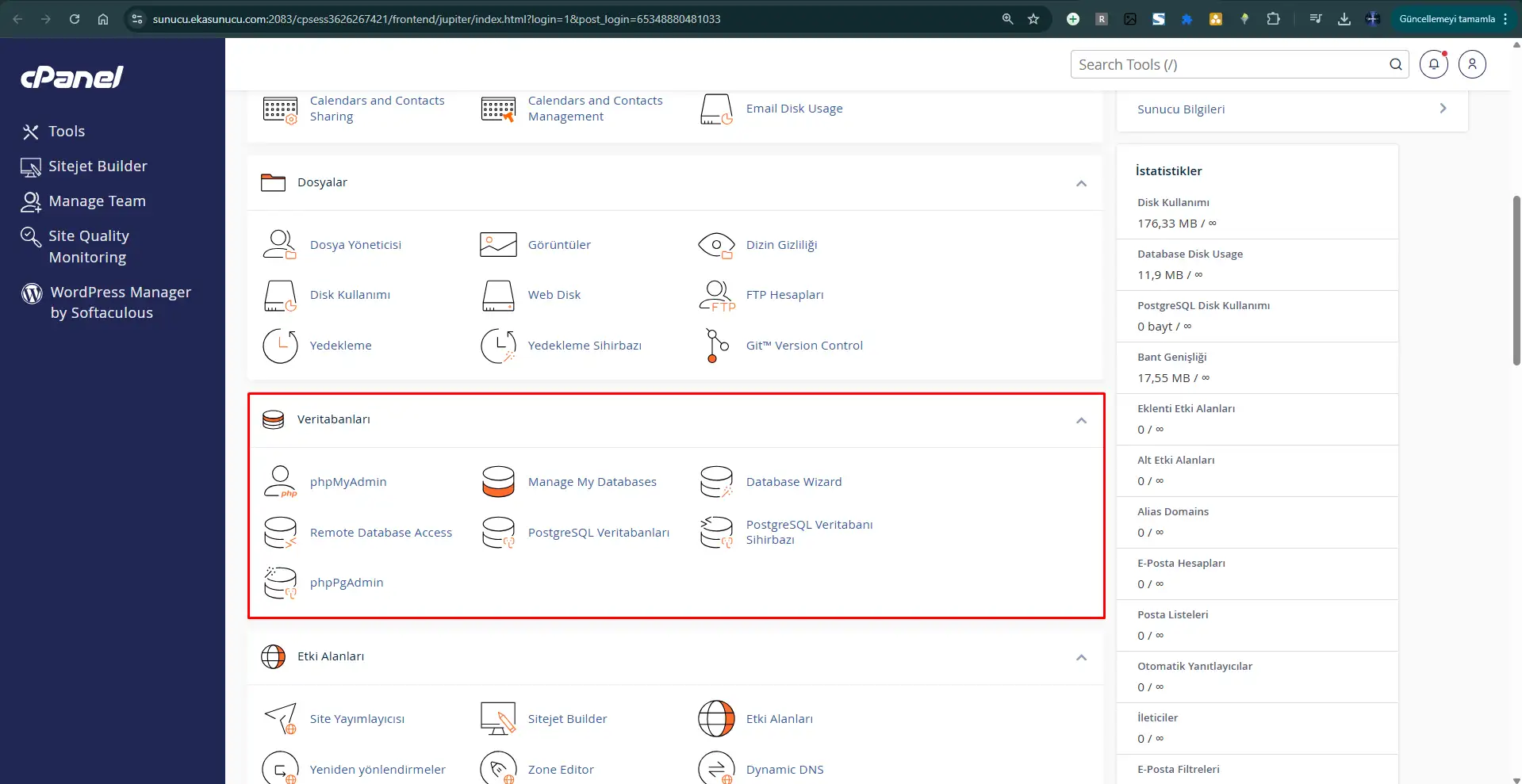
On the cPanel home page, find the "Databases" section. In this section, click "MySQL Databases".
On the "MySQL Databases" page, go to the "Create New Database" section. Here you will need to choose a name for your database.
In the Database name field, enter a name for the database you want to create. cPanel will automatically add your username as a prefix (eg: user_databasename).
Not: The database name can only contain letters, numbers, and underscore (_) characters. Spaces and special characters cannot be used.
Create your database by clicking the "Create" button. Once this process is complete, your new database will appear in the list of available databases.
Congratulations! Your MySQL database has been created successfully. Now you need to create a user to access this database and give this user the appropriate permissions.
Created database name: kullanici_veritabaniadi
Basic management features you can use after creating a MySQL database:
Create a secure user account to access the database
On the "MySQL Databases" page in cPanel, scroll down to find the "MySQL Users" section.
In the "New User" section, enter a username and set a strong password. cPanel will automatically add your account name to the beginning of your username (e.g. user_databaseuser).
You can create a strong and secure password using the password generator. Make sure you keep your password in a safe place!
Create your user account by clicking the "Create User" button. Once this process is complete, your new user will appear in the list of existing users.
Important: At this stage, the user cannot access any database yet. In the next step, you will need to establish the relationship between the user and the database and set the permissions.
Add the user to the database and set access permissions
Easily manage your database with the powerful phpMyAdmin interface
Click on the "phpMyAdmin" icon in the "Databases" section on the cPanel home page.
The phpMyAdmin interface will open in a new tab.
You can start managing your database by selecting it from the left menu.
phpMyAdmin is an open source tool for managing MySQL databases over the web. Thanks to its user-friendly interface, you can easily perform database operations without writing code.
You can create database tables, organize columns, and manage the data structure.
You can write and run custom SQL queries and view query results.
You can transfer data in SQL or CSV format and take database backups.
You can manage database users and permissions directly from the interface.
phpMyAdmin is a powerful tool and misuse can damage your database. Make sure to backup your database before any important operations.
To back up your database, select your database and use the "Export" option from the top menu. You can take a full backup by exporting it in SQL format.
Optimize your tables regularly with the "Optimize" and "Repair" options. This improves database performance and fixes potential problems.
Learn the process of creating and managing a cPanel database with step-by-step visual explanation
Most frequently asked questions and answers about database creation and management
The number of databases you can create depends on the features and limitations of your hosting package. Many hosting packages offer a certain number of MySQL databases. This number typically ranges from 5 to unlimited.
On cPanel's MySQL Databases page, the total number of databases you can create and how many you're already using are usually shown at the top. If you have questions about limitations, the best approach would be to contact your hosting provider.
Yes, there are some restrictions when specifying a database name:
Keeping these restrictions in mind, it is recommended that you use short and understandable database names.
There are several methods to back up your database in cPanel:
It is important to take regular database backups so that you can restore quickly in case of data loss.
The "ALL PRIVILEGES" permission gives a database user full control over the database. This means that the user can perform all operations such as creating, modifying, deleting tables in the database and reading, writing, deleting data.
Potential risks of granting these permissions include:
Best practice is to grant each user only the minimum permissions they need (principle of least privilege). However, if the database is only managed by you or used by an application you trust, it may be practical to grant the "ALL PRIVILEGES" permission.
You can use the phpMyAdmin tool to create a database table:
Alternatively, you can create a table using an SQL query. To do this, click the "SQL" tab in phpMyAdmin and write your CREATE TABLE query.
If you have forgotten your database user's password, you can easily reset it via cPanel:
Note that after changing the password, you must also update the configuration files of all applications that use this database user. For example, for a WordPress site you need to update the wp-config.php file, for Joomla you need to update the configuration.php file.
Realize your web projects with our hosting packages powered by MySQL database support. Take advantage of high performance, superior security and 7/24 technical support.
 Turkey (Turkish)
 Germany (German)
 Worldwide (English)

