
 Halkali merkez neighborhood fatih st ozgur apt no 46 , Kucukcekmece , Istanbul , 34303 , TR
This guide documents a real Windows Server 2022 VPS deployment: Ollama installation, a lightweight Gemma3 CPU test, Python 3.11 and uv, Open WebUI, the real tools-support warning, FunctionGemma, and a Task Scheduler configuration that starts Open WebUI at boot without requiring an interactive login, illustrated with 60 real screenshots.
Windows VPS → Ollama :11434
              ↓
       gemma3:270m / functiongemma
              ↓
       Open WebUI :8080
              ↓
Windows Task Scheduler → 24/7This guide documents a real local-AI stack built on Windows Server 2022. Ollama is used as the local model runtime while Open WebUI provides a browser-based ChatGPT-style interface for those models.
Because the test VPS did not have a dedicated NVIDIA GPU, we first validated the stack with the roughly 291 MB gemma3:270m model. We then documented the Open WebUI tools warning, added FunctionGemma, and finally configured Open WebUI to start from Windows Task Scheduler even when no user is logged in.
Windows VPS → Ollama :11434 → Local models
                         ├── gemma3:270m
                         └── functiongemma

Open WebUI :8080 → Ollama
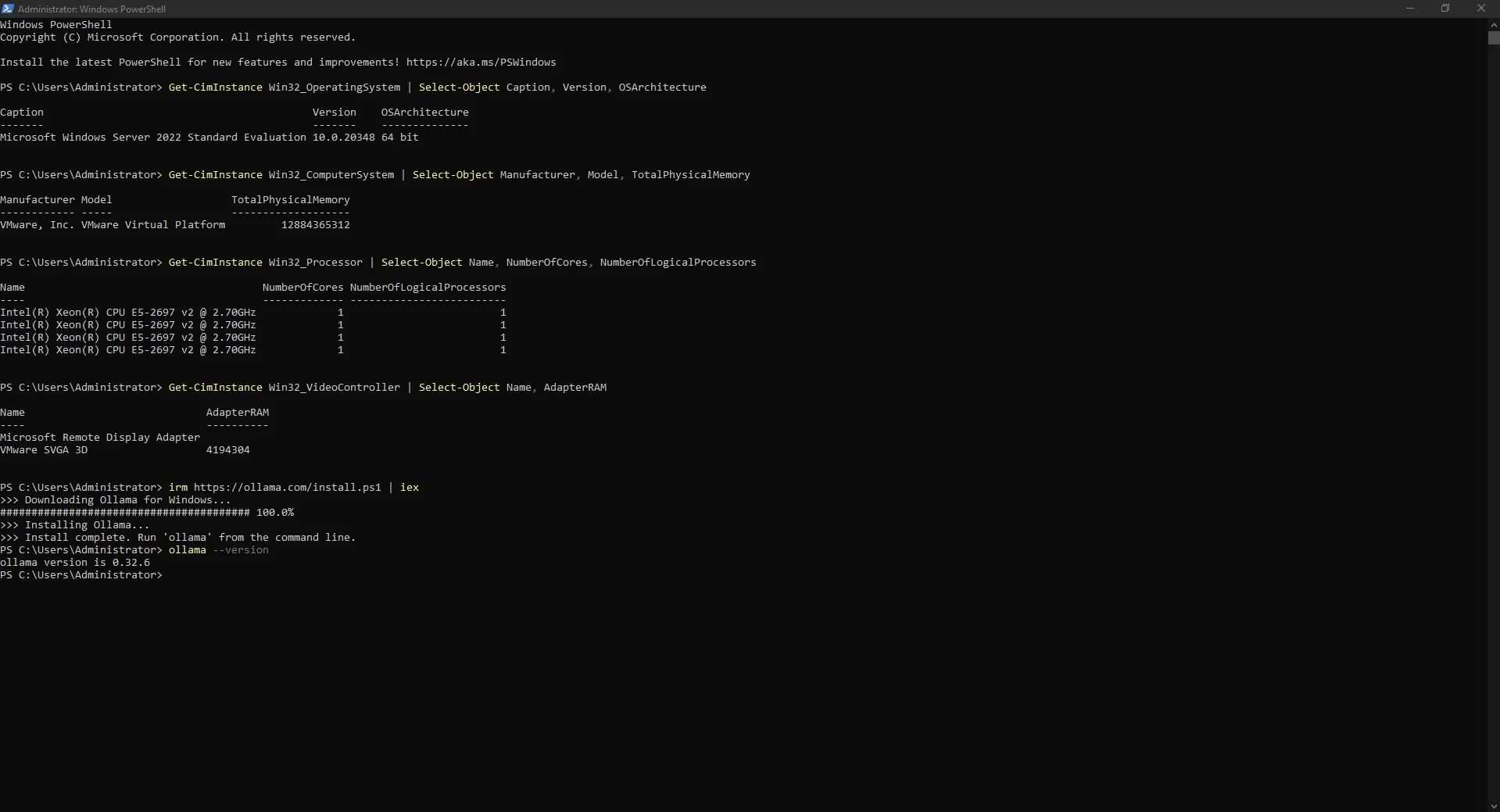
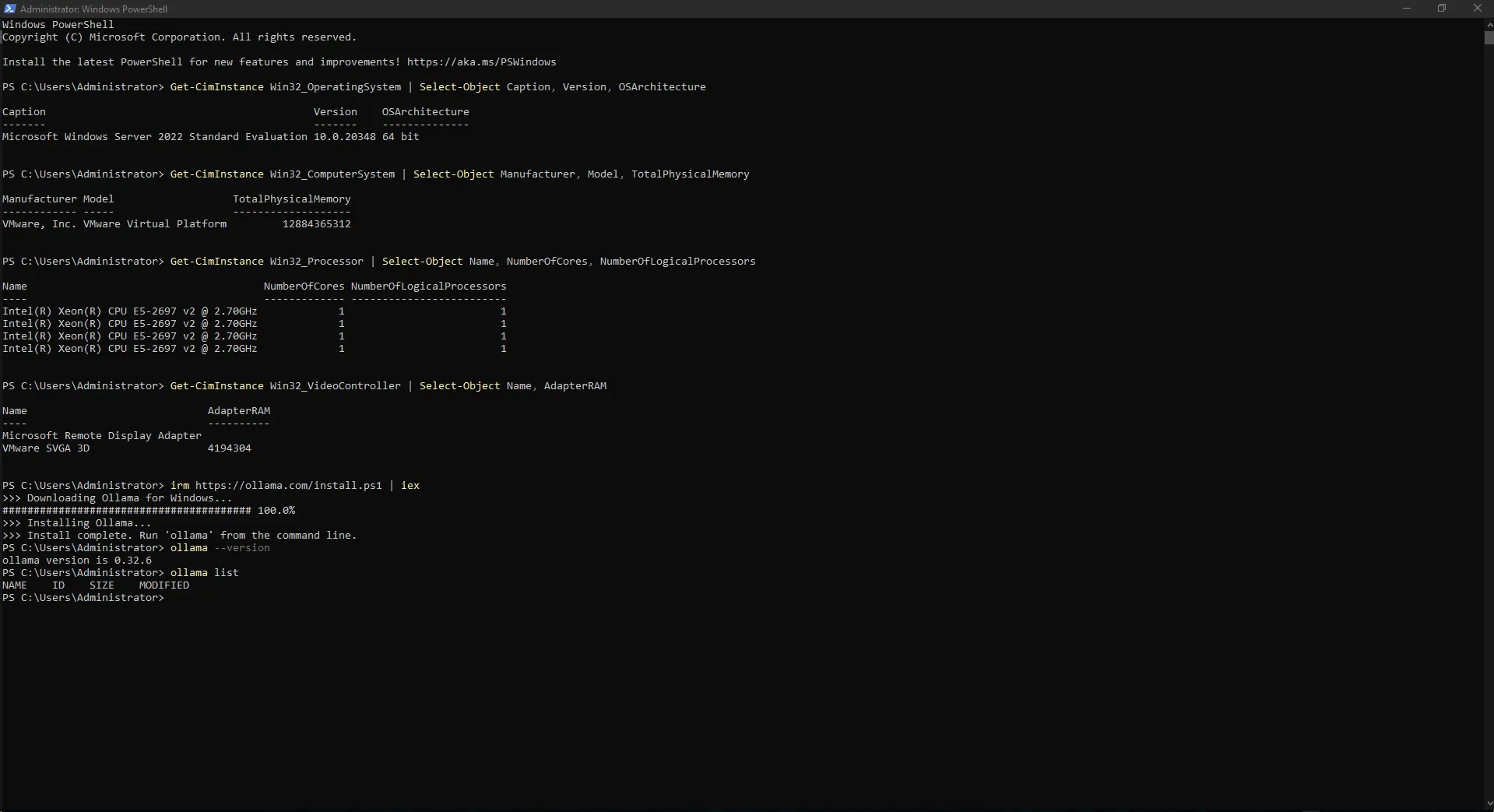
Windows Task Scheduler → Open WebUI auto-startWe started with an elevated Windows PowerShell session and checked the operating system, virtualization platform, memory, CPU and display adapters using Get-CimInstance.
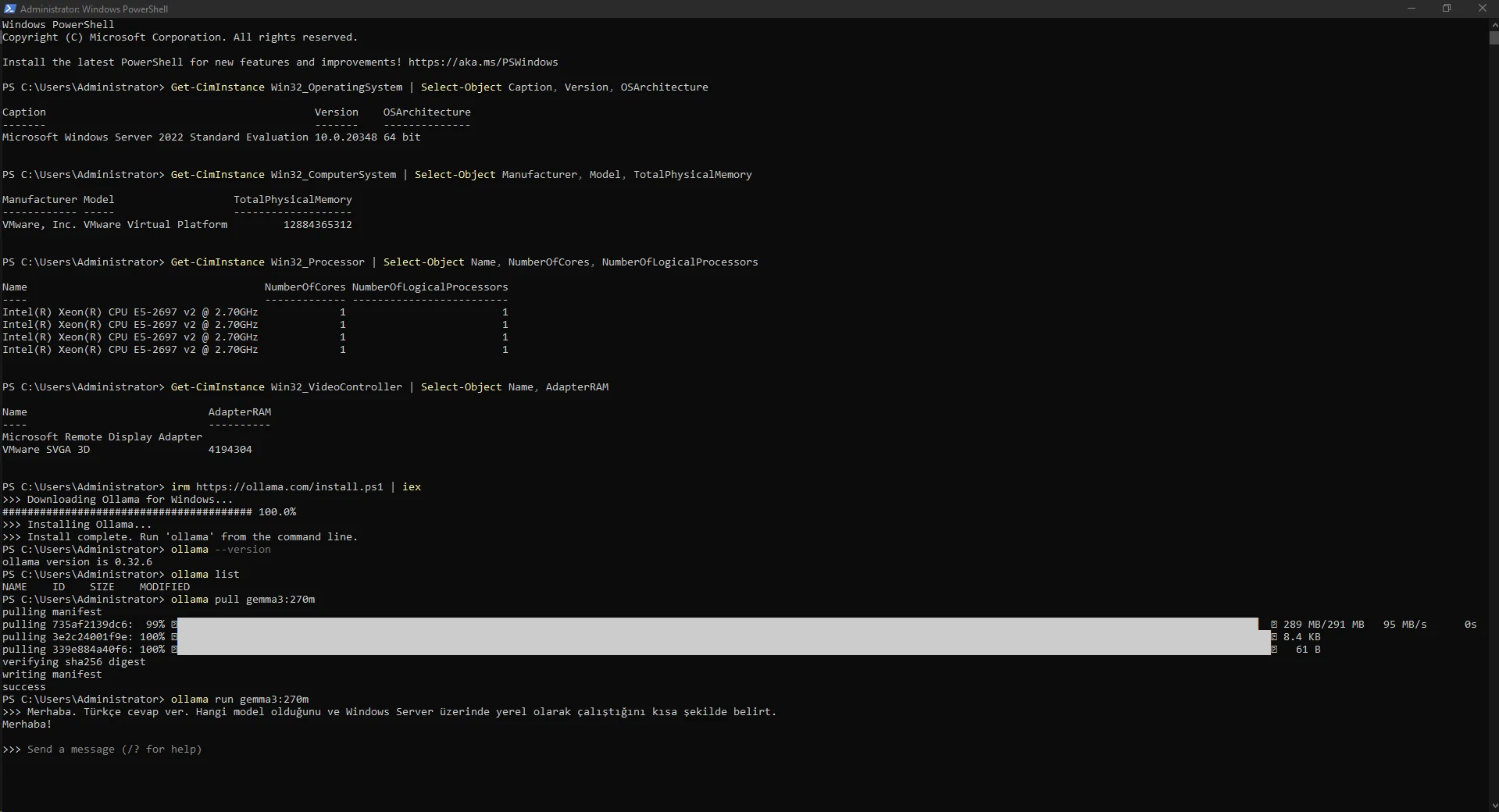
The test machine ran Windows Server 2022 Standard Evaluation 64-bit on VMware with an Intel Xeon E5-2697 v2. No dedicated compute GPU was visible, so lightweight local models were used to validate the deployment flow.
Get-CimInstance Win32_OperatingSystem | Select-Object Caption, Version, OSArchitectureGet-CimInstance Win32_ComputerSystem | Select-Object Manufacturer, Model, TotalPhysicalMemoryGet-CimInstance Win32_Processor | Select-Object Name, NumberOfCores, NumberOfLogicalProcessorsGet-CimInstance Win32_VideoController | Select-Object Name, AdapterRAM

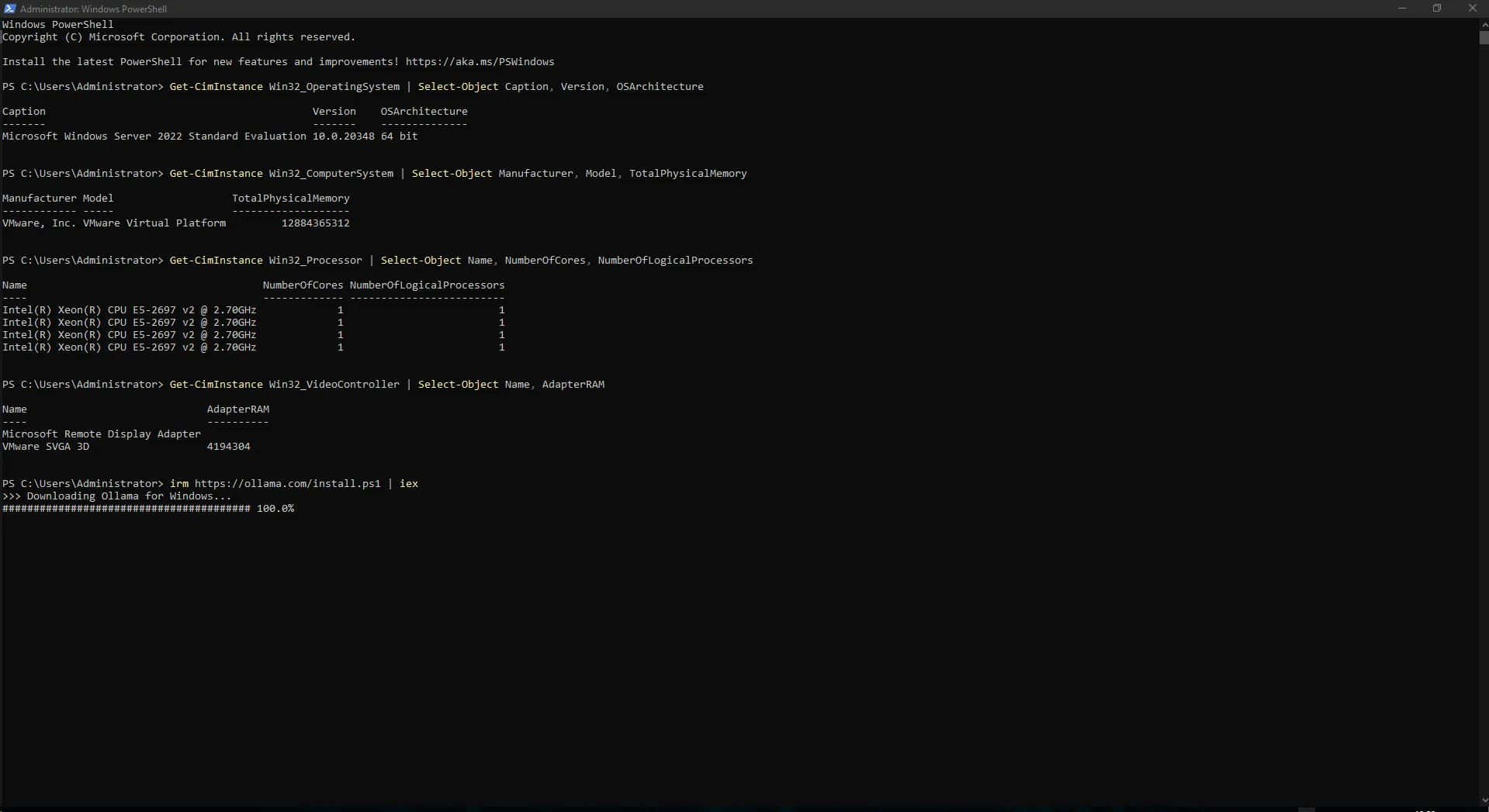
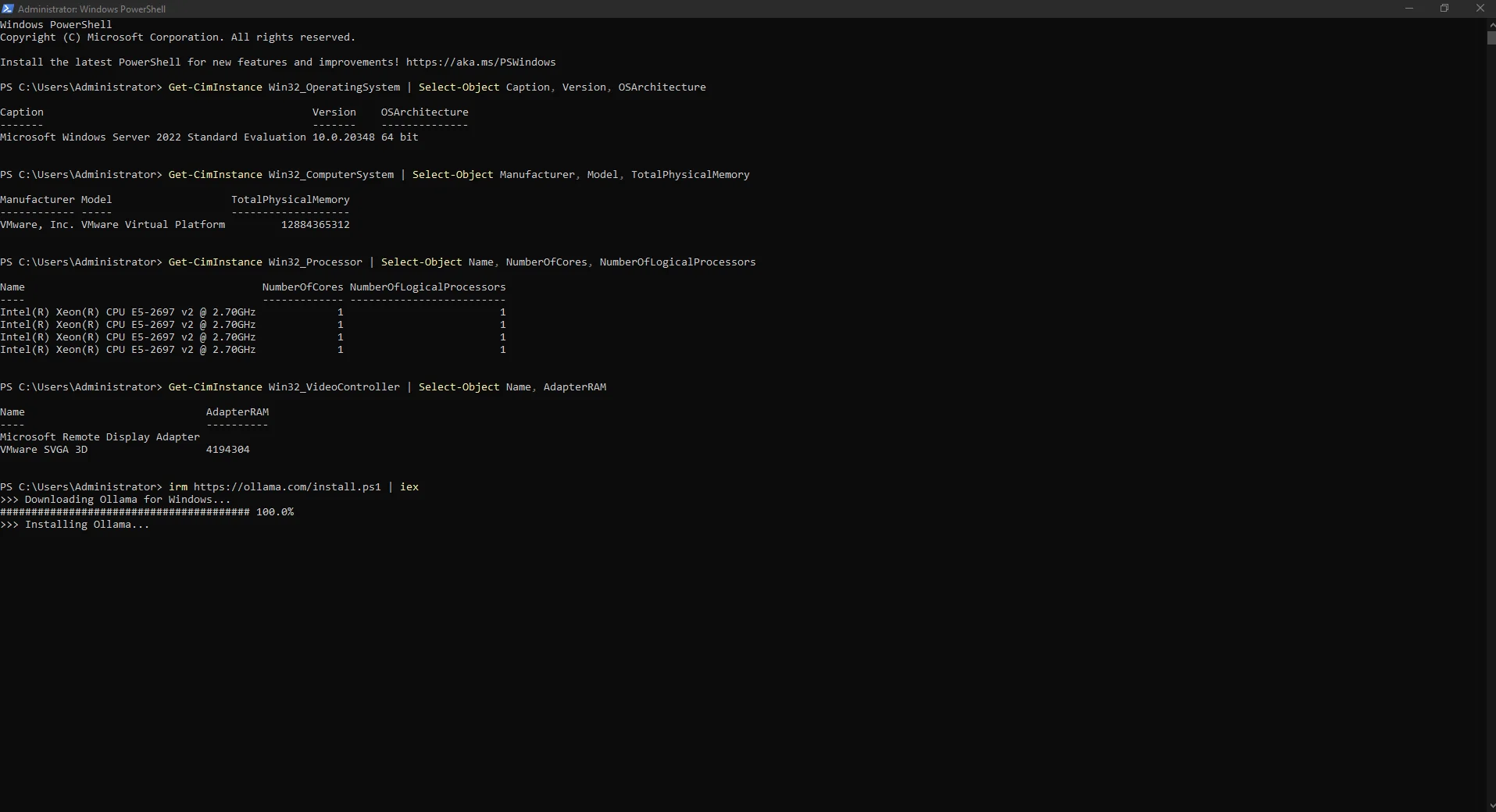
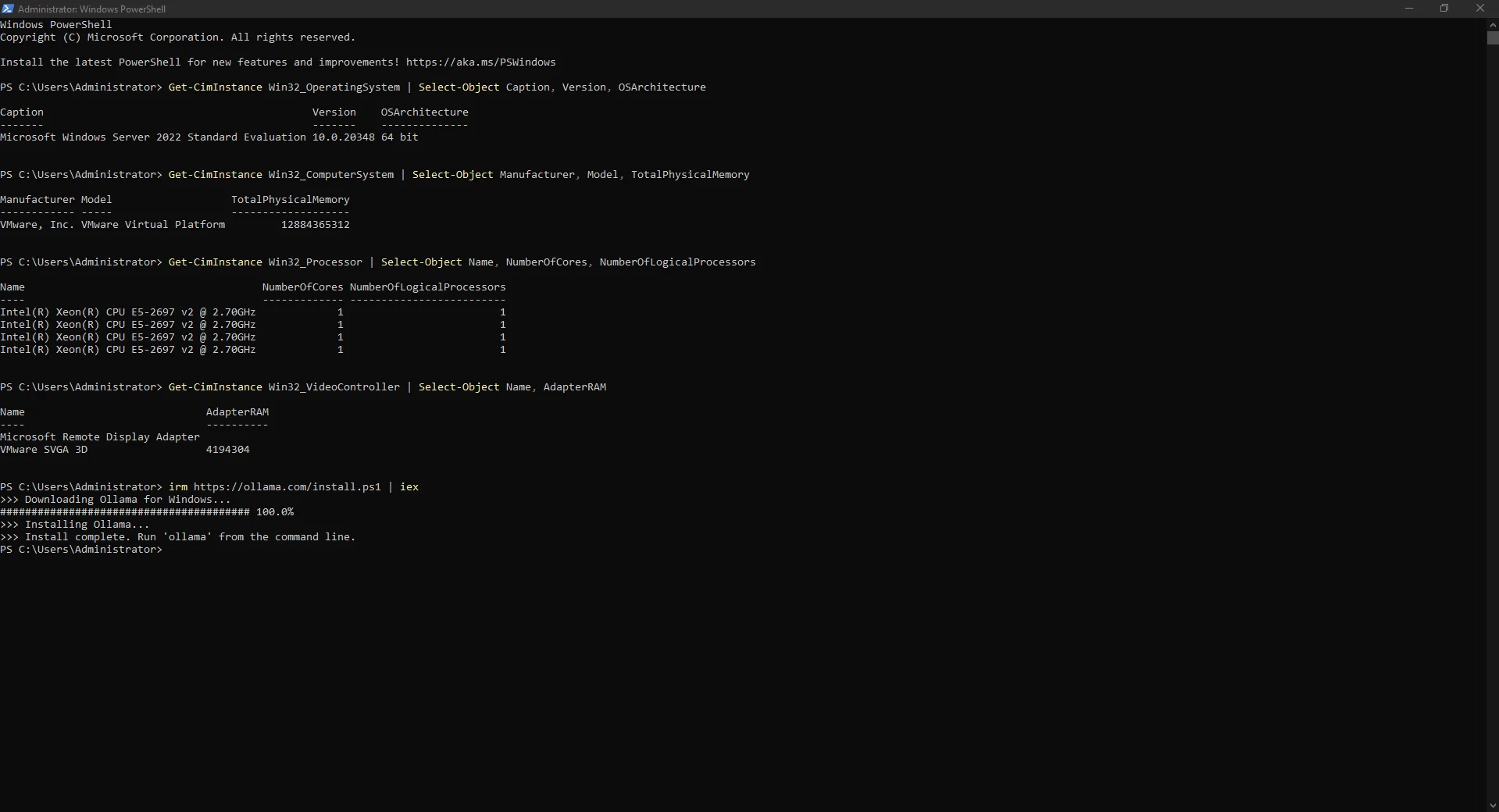
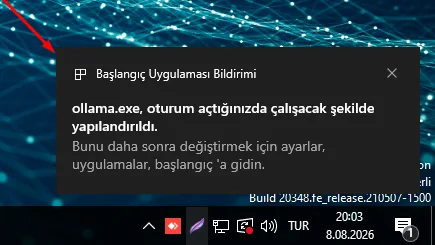
We launched the Ollama Windows installer with one PowerShell command. The installer downloaded the package, completed installation and Windows displayed a notification that ollama.exe was configured to start when signing in.
Wait for the Install complete message before moving to service and CLI verification.
irm https://ollama.com/install.ps1 | iex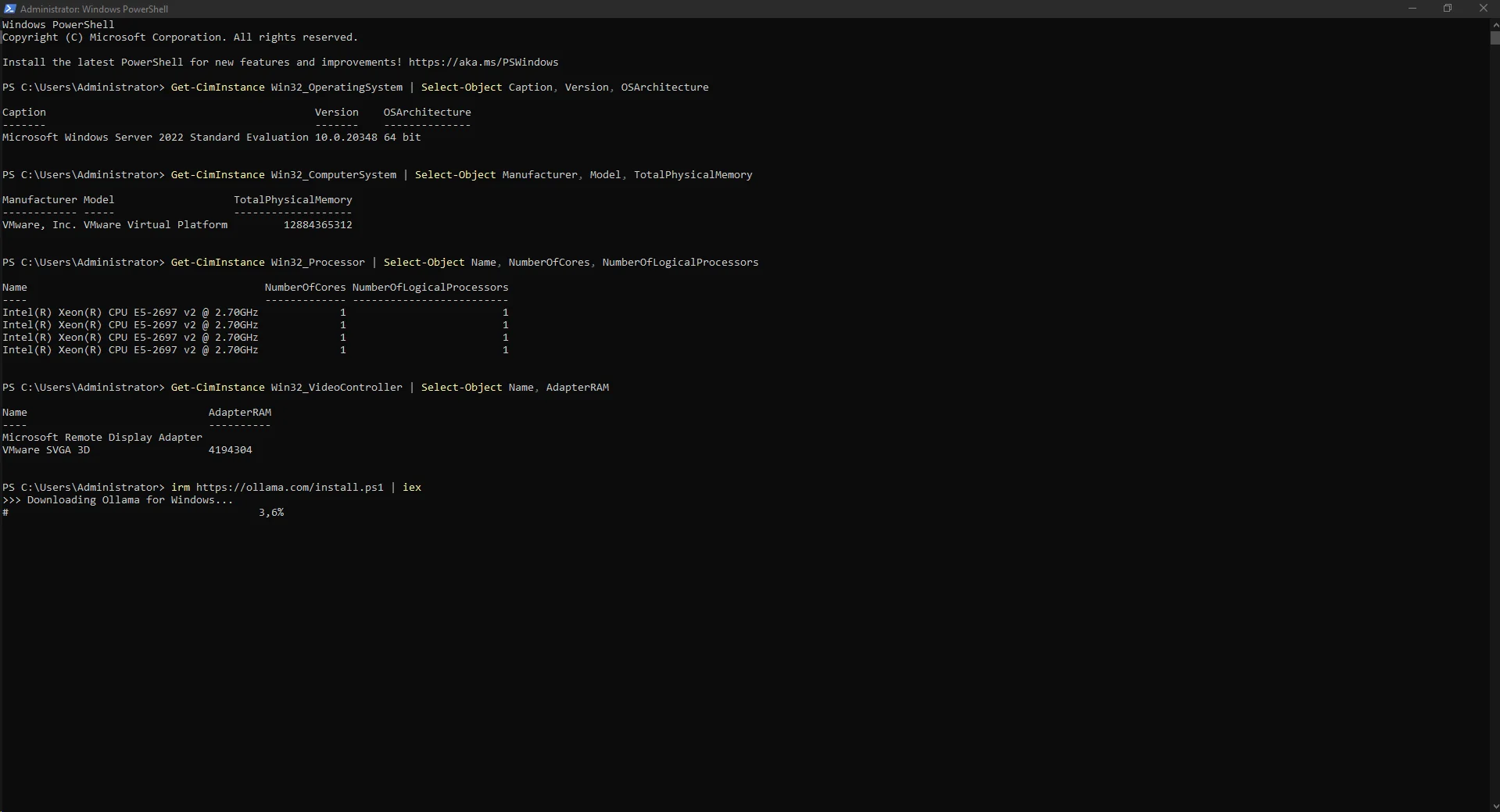
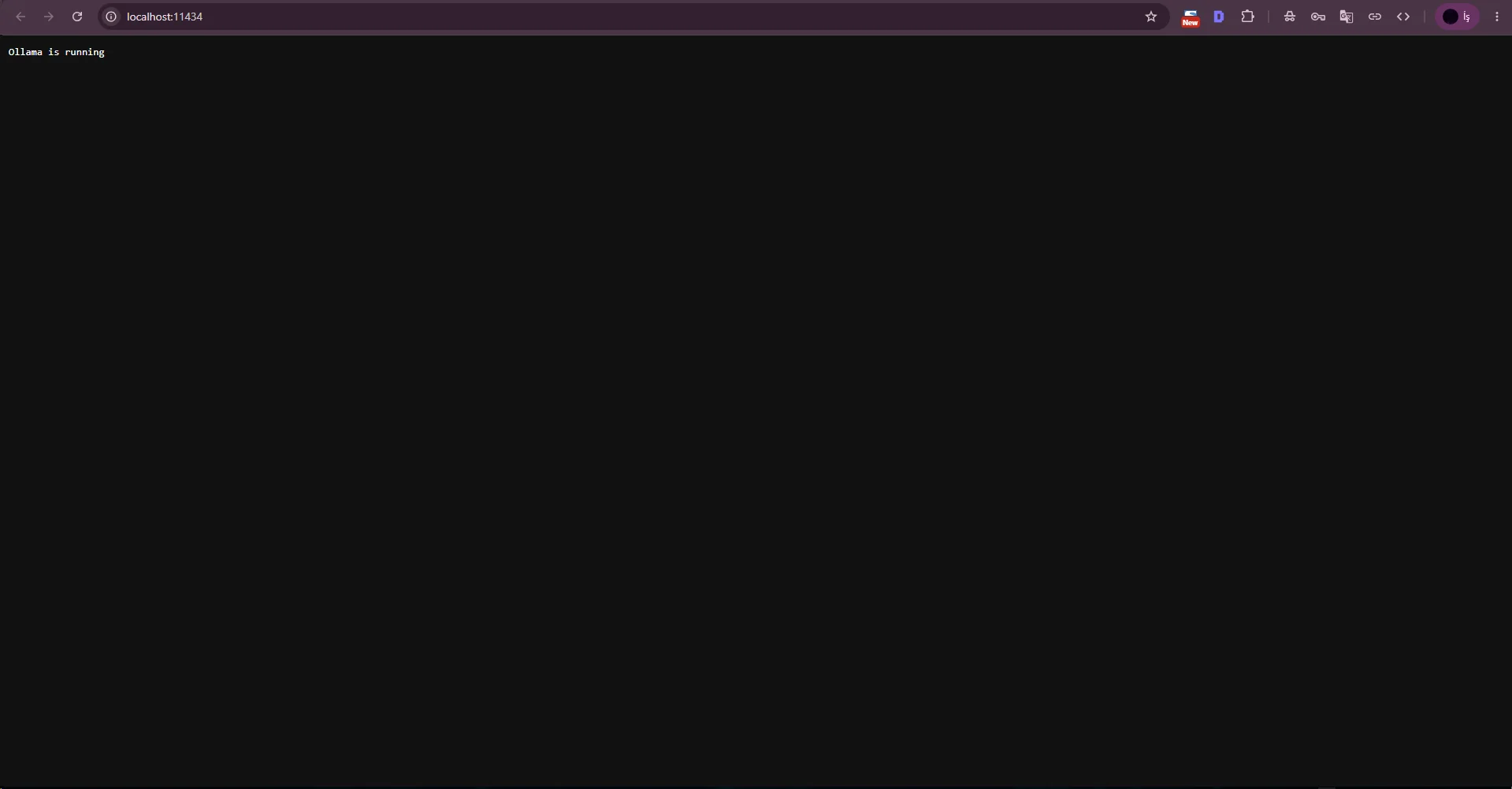
Opening http://localhost:11434 returned Ollama is running, confirming that the local HTTP service was available.
We then checked ollama --version; our screenshot recorded version 0.32.6. ollama list was empty because no model had been downloaded yet, which is expected after a clean installation.
ollama --versionollama listhttp://localhost:11434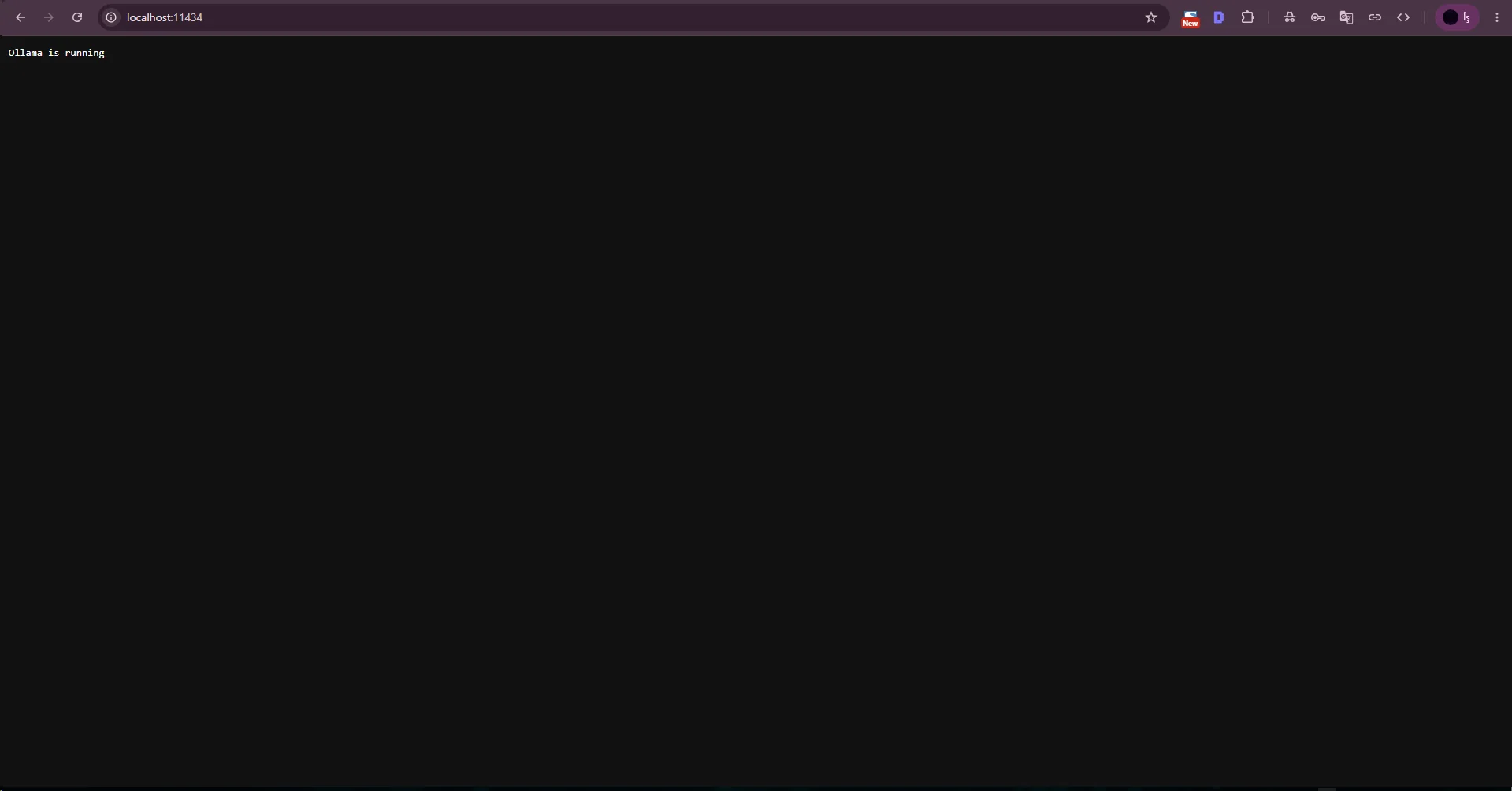
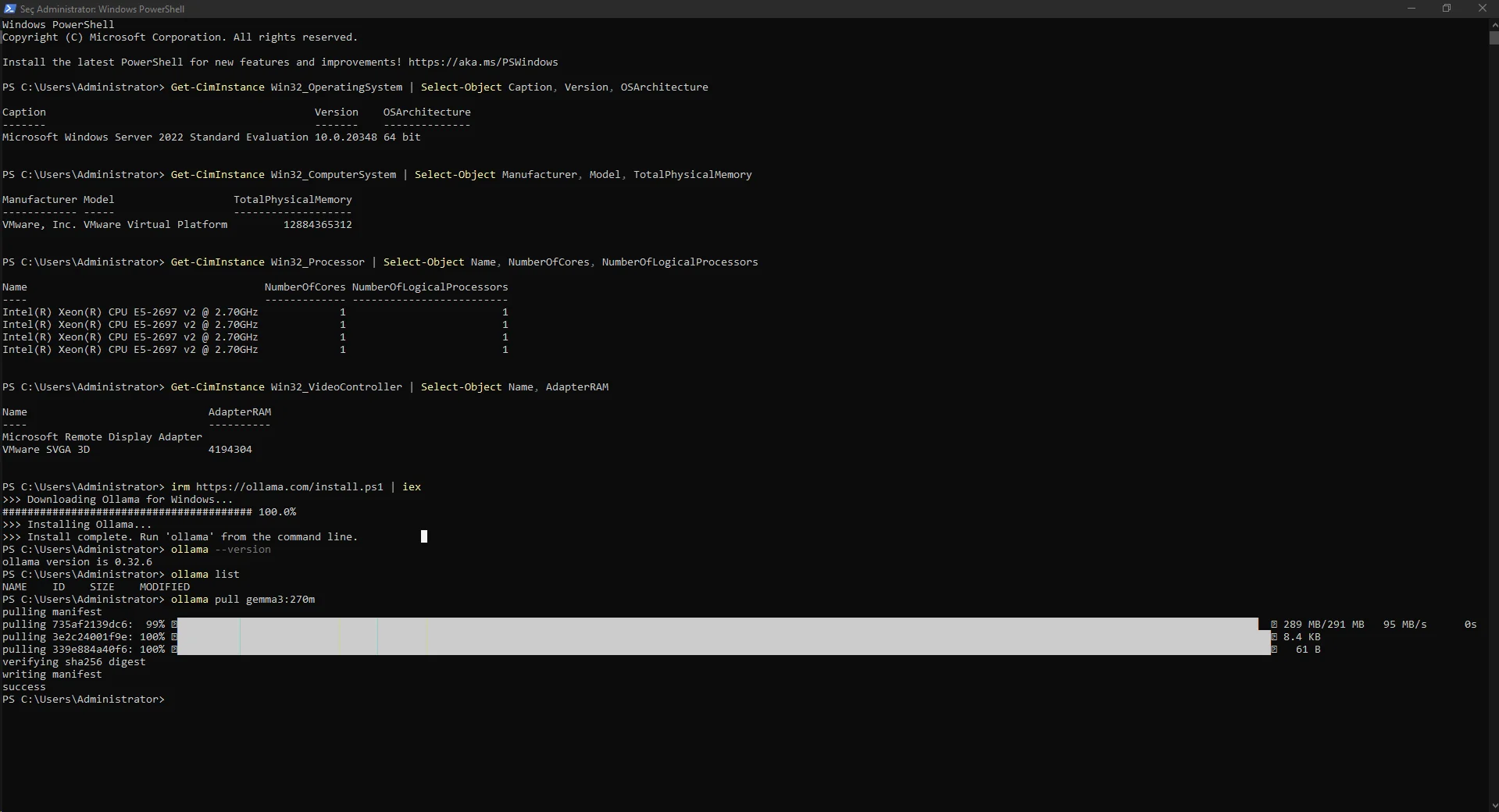
Because this VPS would host additional services and had no dedicated GPU, we kept the first validation model small. ollama pull gemma3:270m downloaded roughly 291 MB.
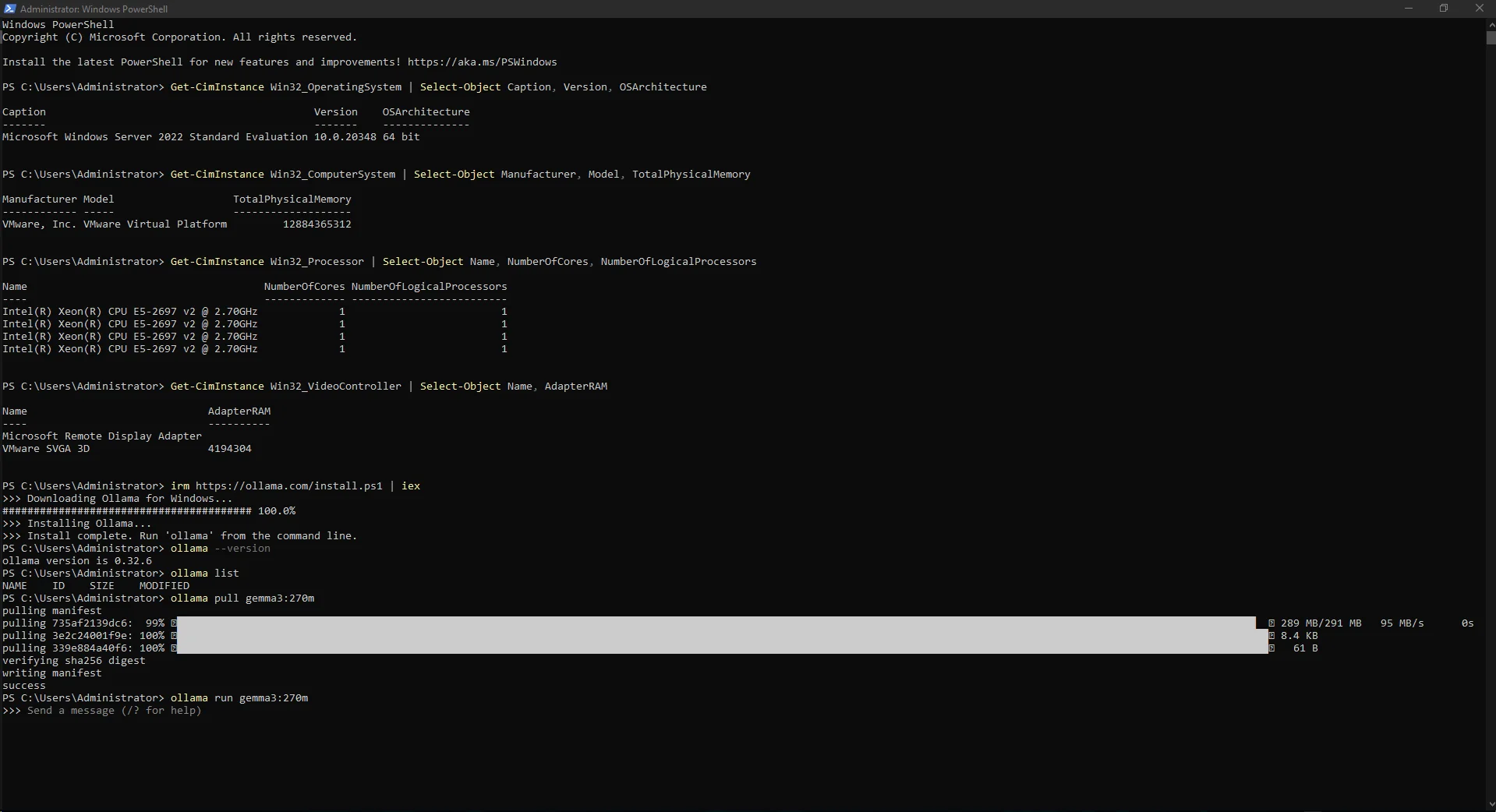
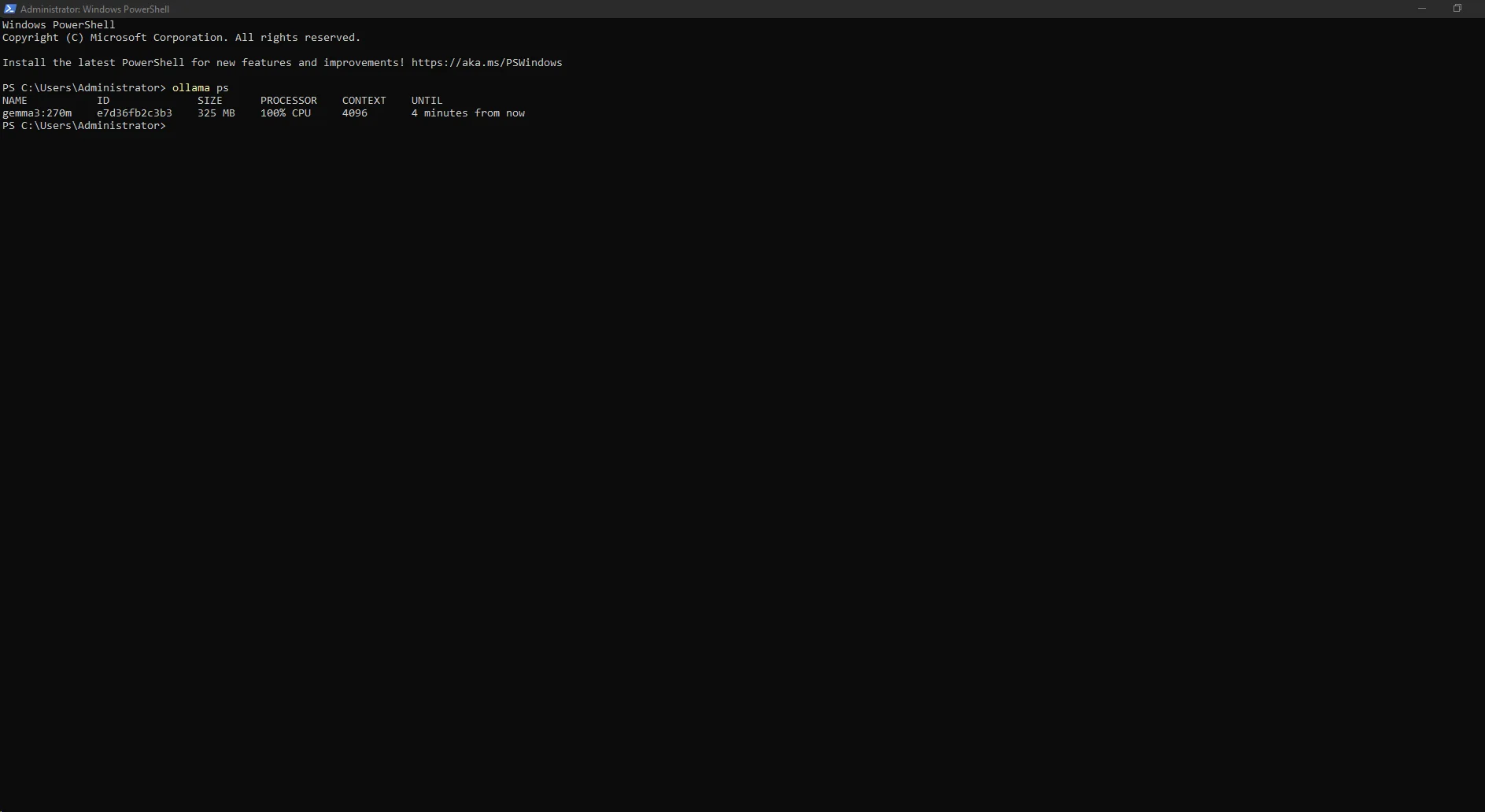
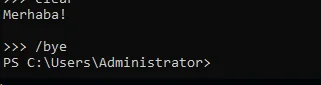
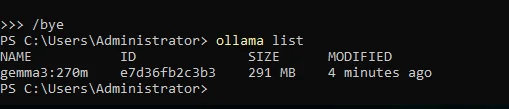
We started the model with ollama run gemma3:270m, sent a Turkish test prompt and received a local response. ollama ps showed the model running on CPU; /bye exited the interactive session and ollama list confirmed that the model remained installed.
A 270M-class model is useful for functional testing but is limited for demanding reasoning or high-quality production workloads. Choose a larger model when your CPU, RAM or GPU budget permits.
ollama pull gemma3:270mollama run gemma3:270mollama ps/byeollama list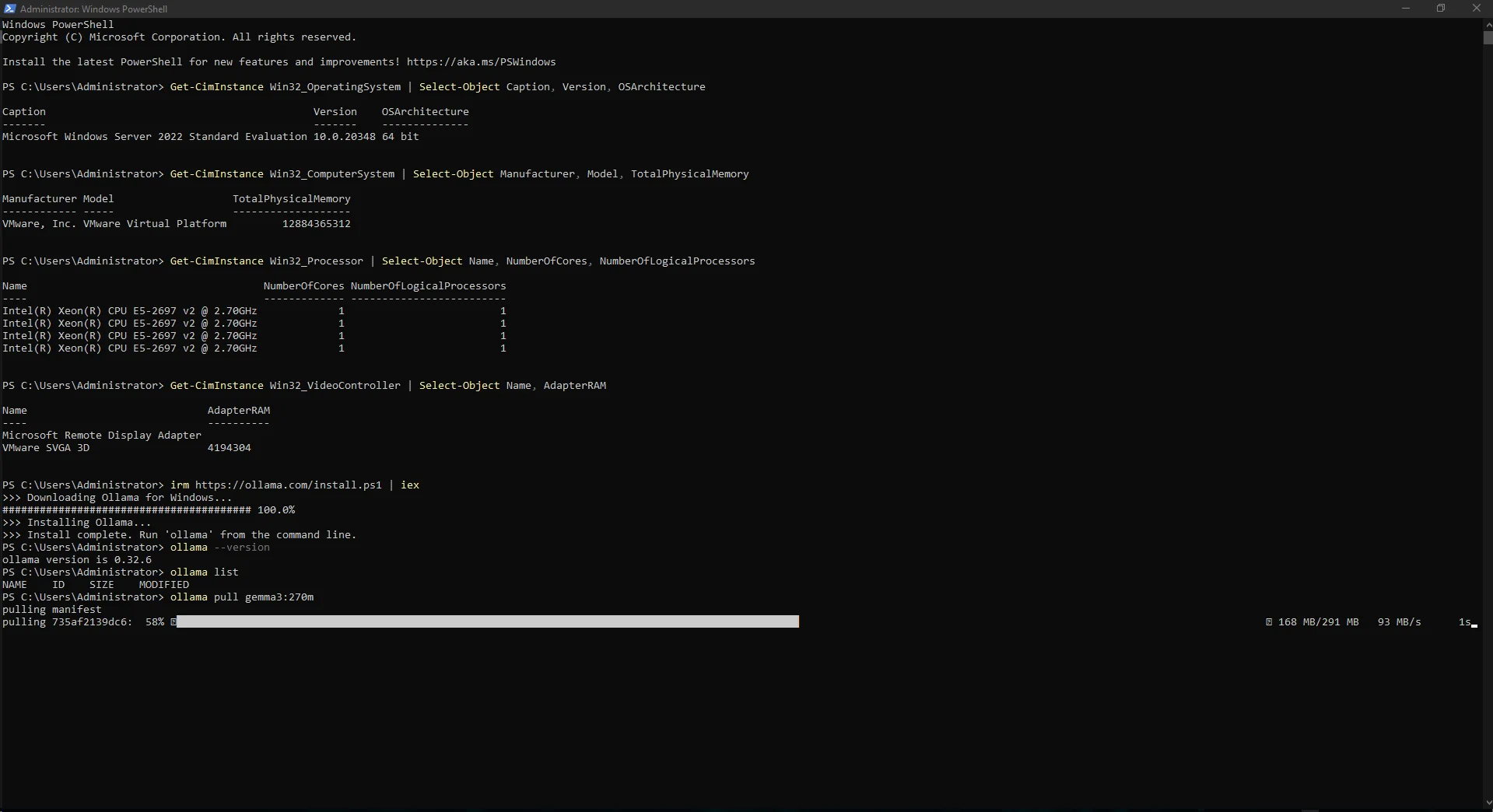
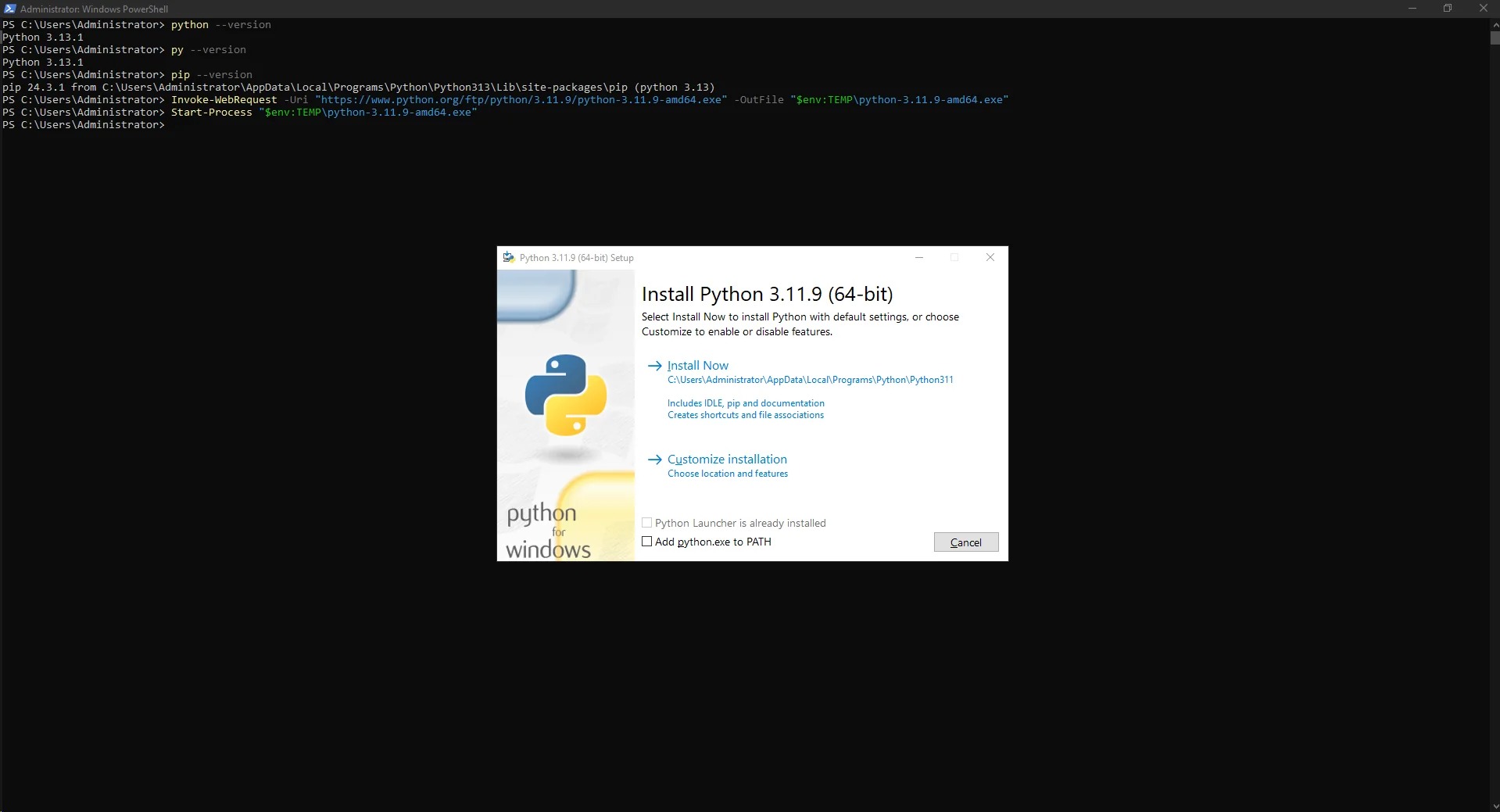
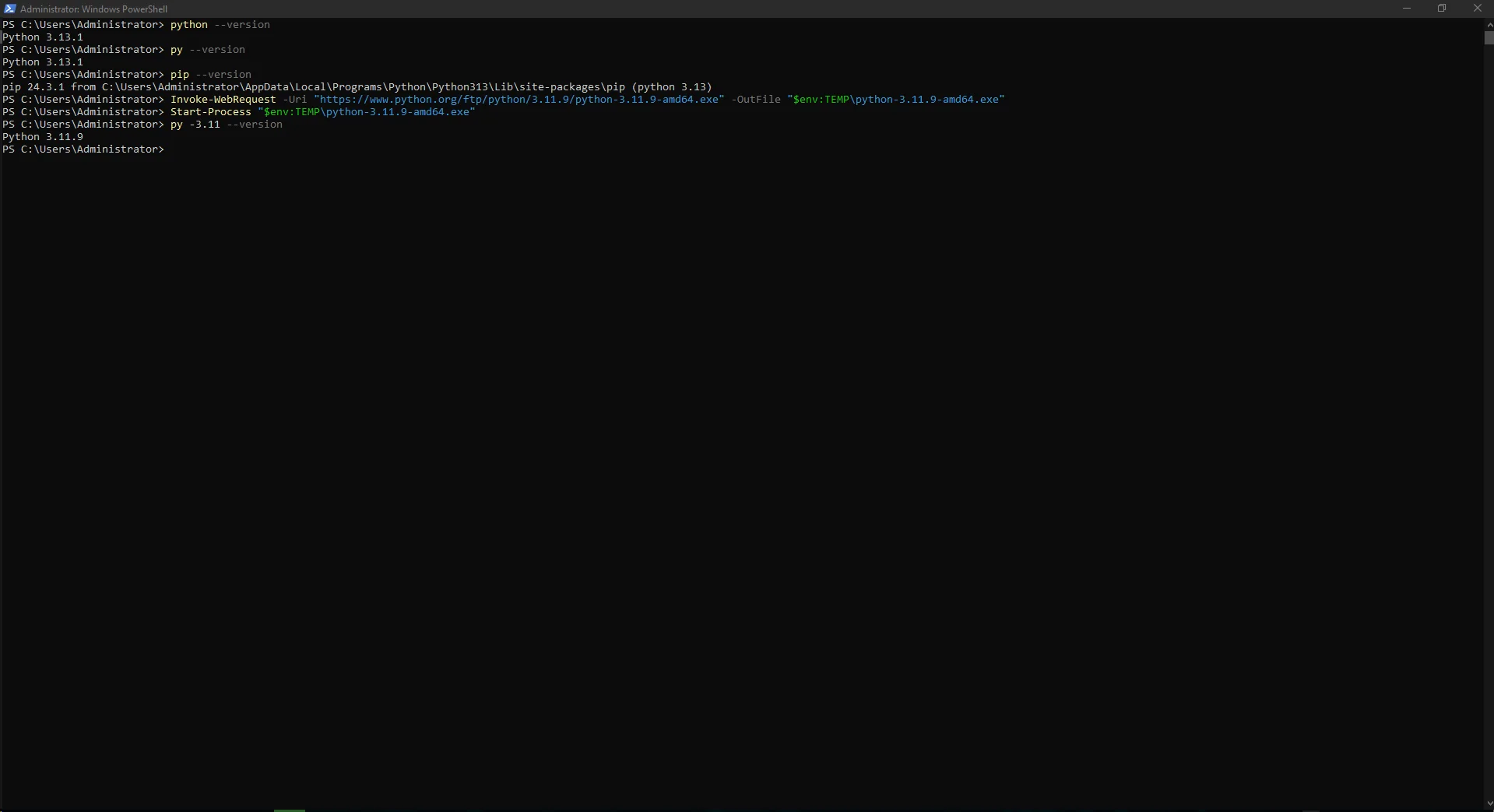
The server already had Python 3.13.1. Instead of removing it, we installed Python 3.11.9 side-by-side for Open WebUI so other applications could keep their existing environment.
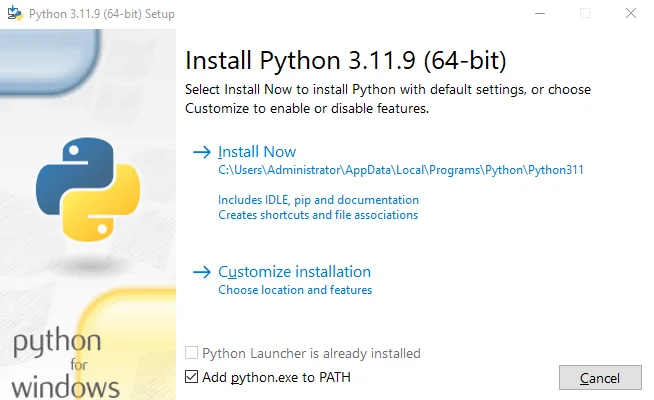
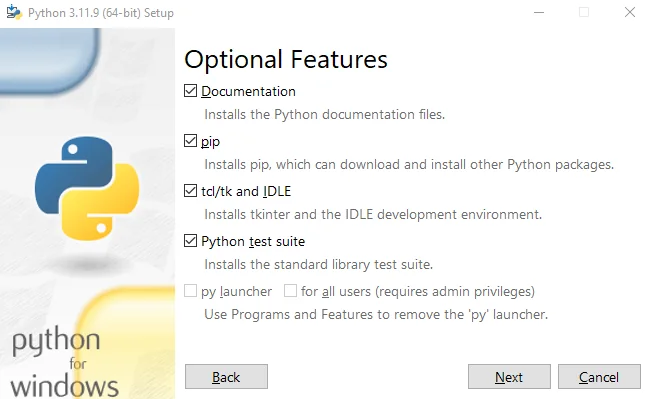
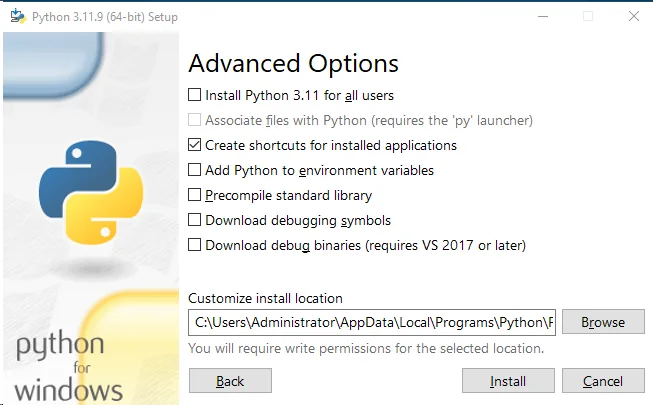
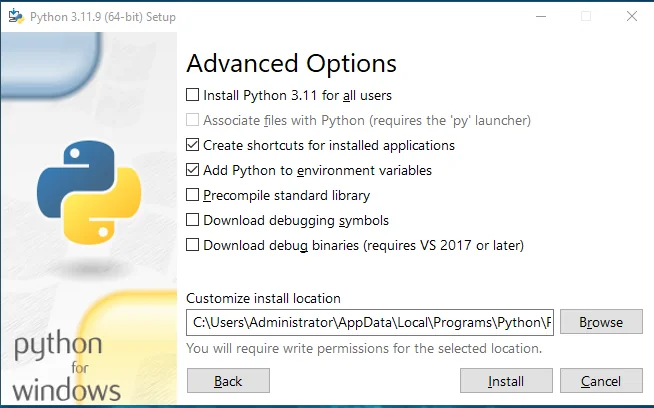
In the installer we enabled Add python.exe to PATH, kept pip and the required optional features, and enabled Add Python to environment variables under Advanced Options.
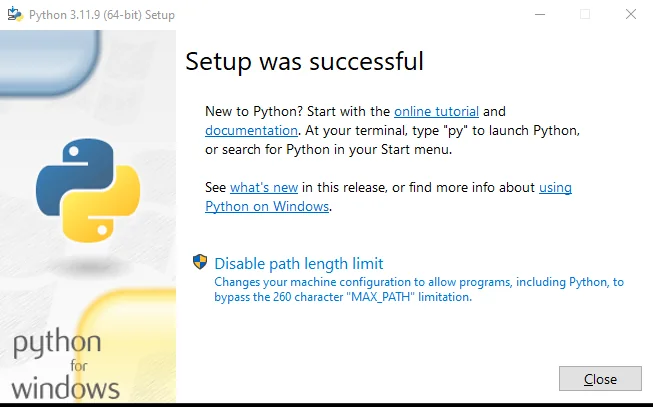
After Setup was successful, py -3.11 --version confirmed Python 3.11.9.
python --version
py --version
pip --versionInvoke-WebRequest -Uri "https://www.python.org/ftp/python/3.11.9/python-3.11.9-amd64.exe" -OutFile "$env:TEMP\python-3.11.9-amd64.exe"Start-Process "$env:TEMP\python-3.11.9-amd64.exe"py -3.11 --version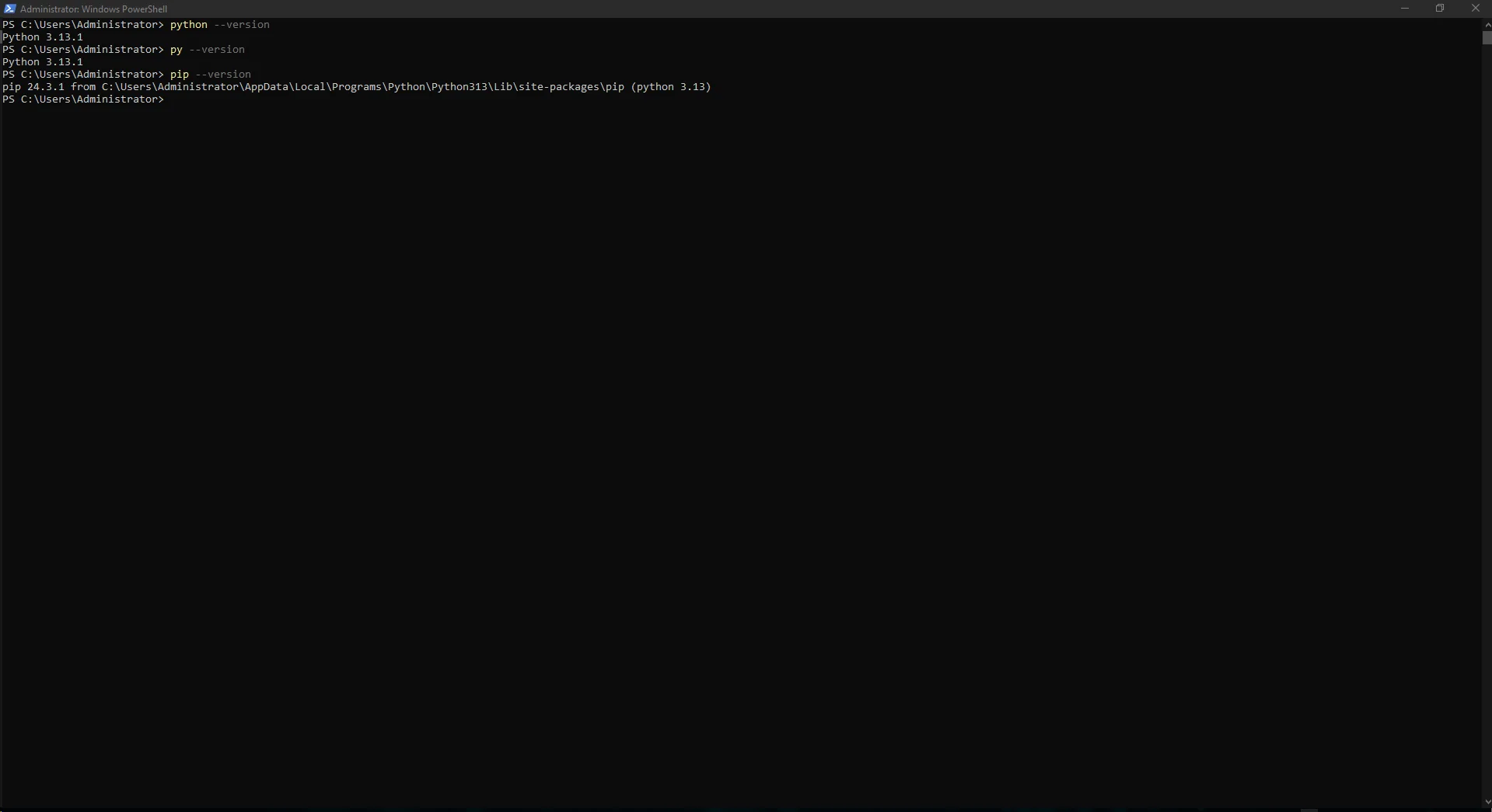
We used Astral uv so Open WebUI could be launched with a specific Python version. The installer placed uv.exe and uvx.exe in the user .local\bin directory.
After adding that directory to PATH for the current PowerShell session, uv --version verified the installation.
powershell -ExecutionPolicy ByPass -c "irm https://astral.sh/uv/install.ps1 | iex"$env:Path = "C:\Users\Administrator\.local\bin;$env:Path"uv --version

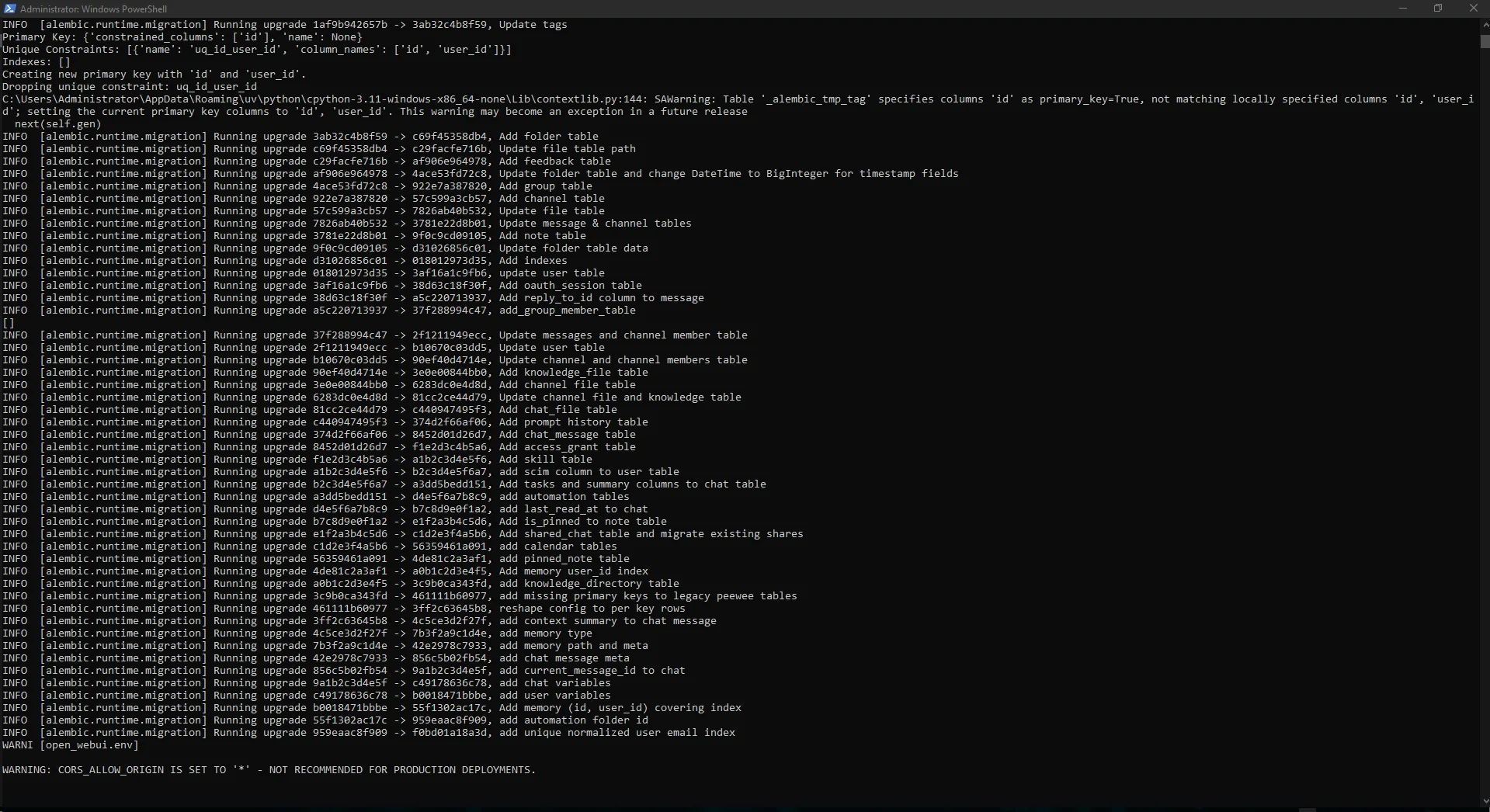
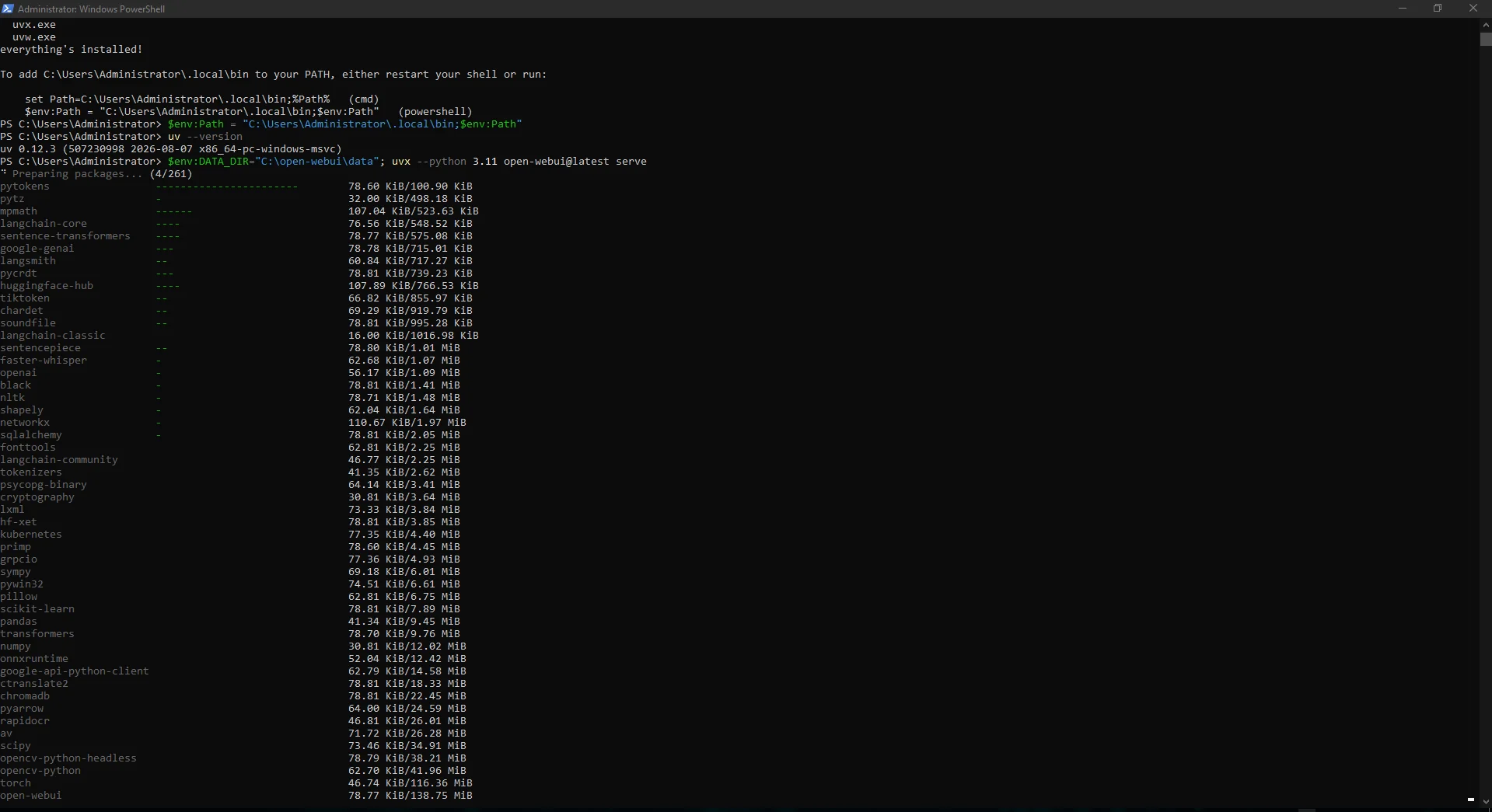
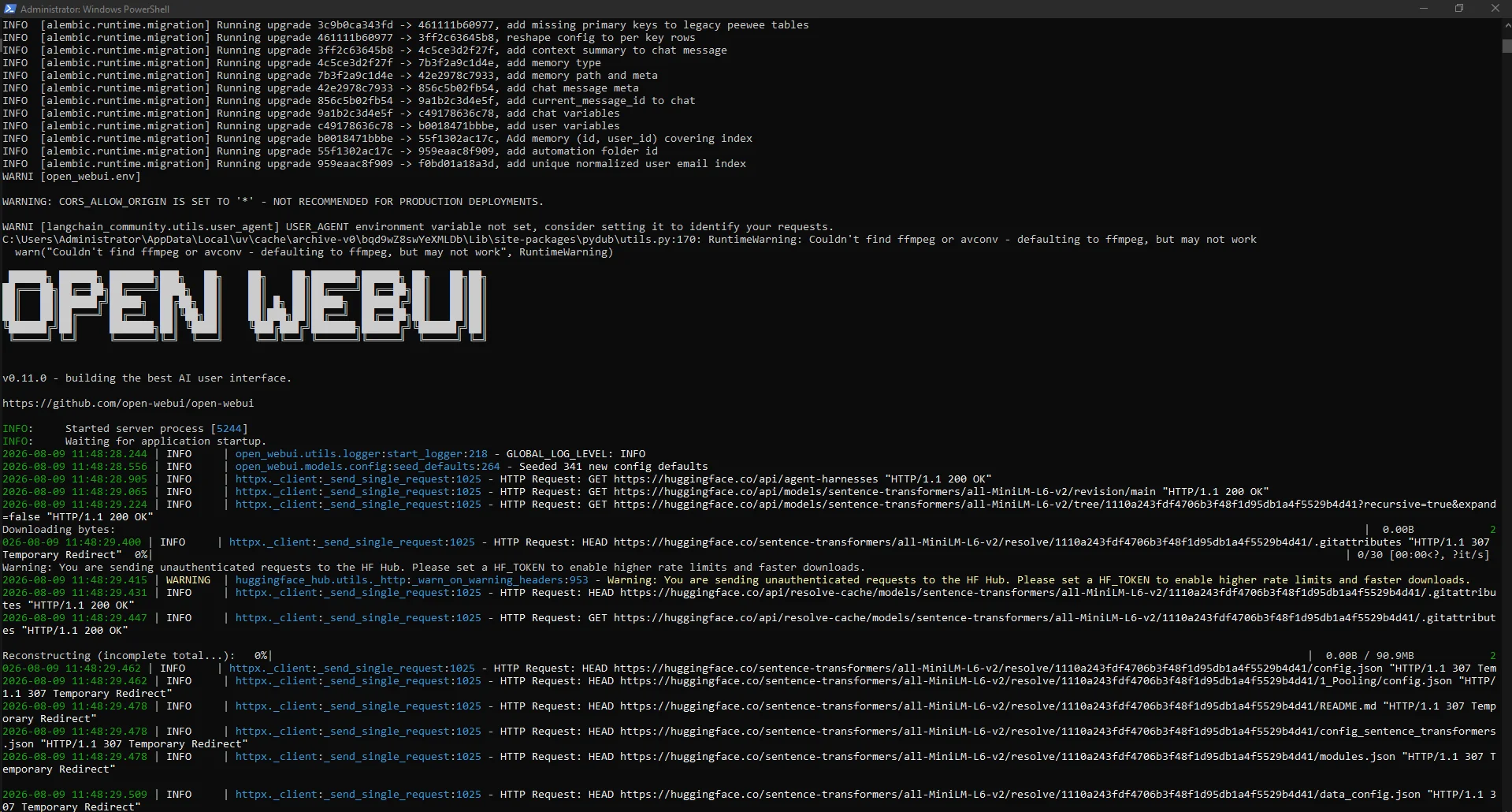
We set DATA_DIR to C:\open-webui\data and launched Open WebUI through uvx with Python 3.11. The first run installed many Python dependencies, performed database migrations and downloaded supporting files, so it took longer than later starts.
When the OPEN WEBUI banner, Started server process and application startup logs appeared, the service was ready. Our captured run displayed Open WebUI v0.11.0; using @latest may produce a different version later.
$env:DATA_DIR="C:\open-webui\data"; uvx --python 3.11 open-webui@latest serve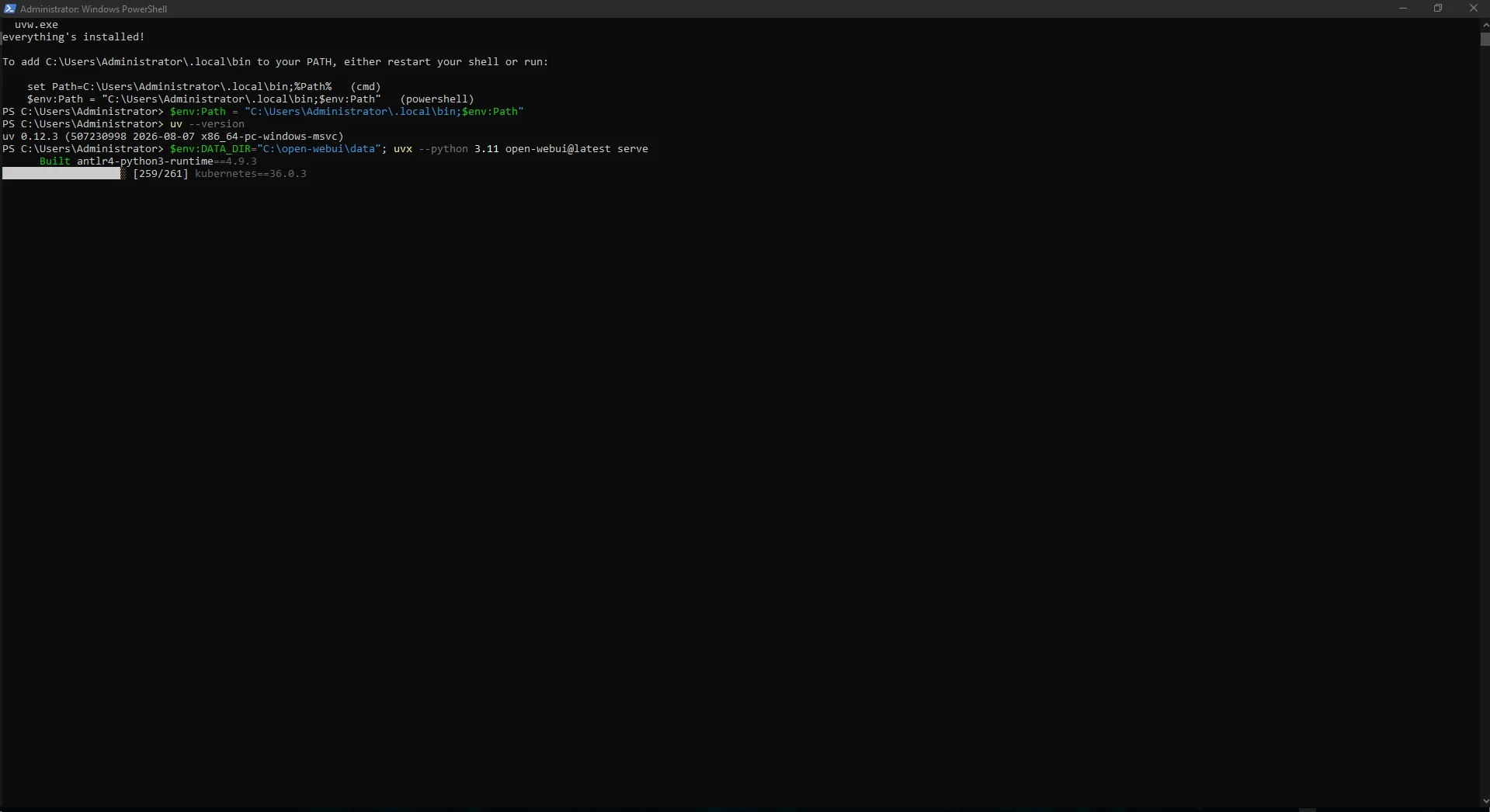
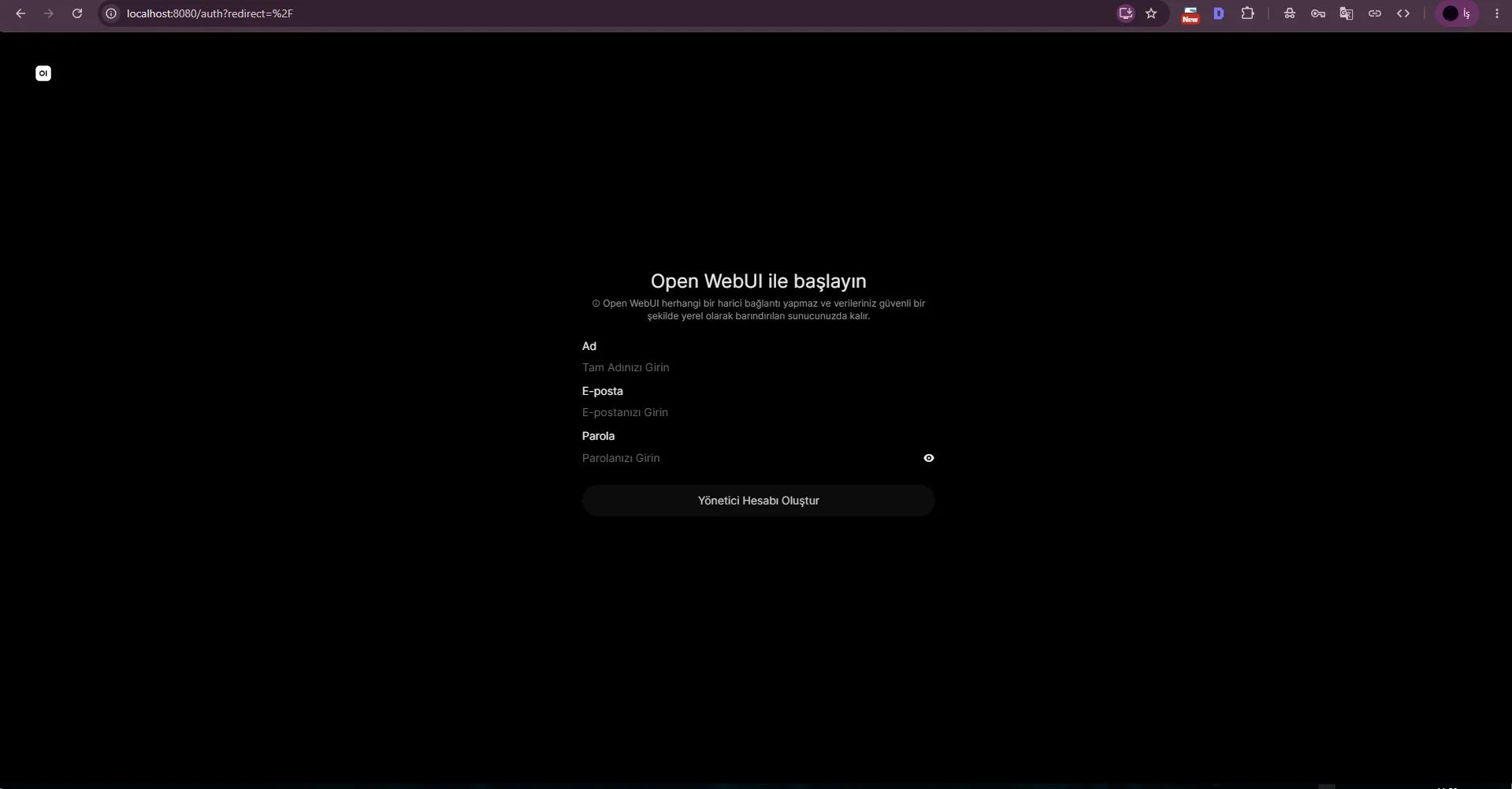
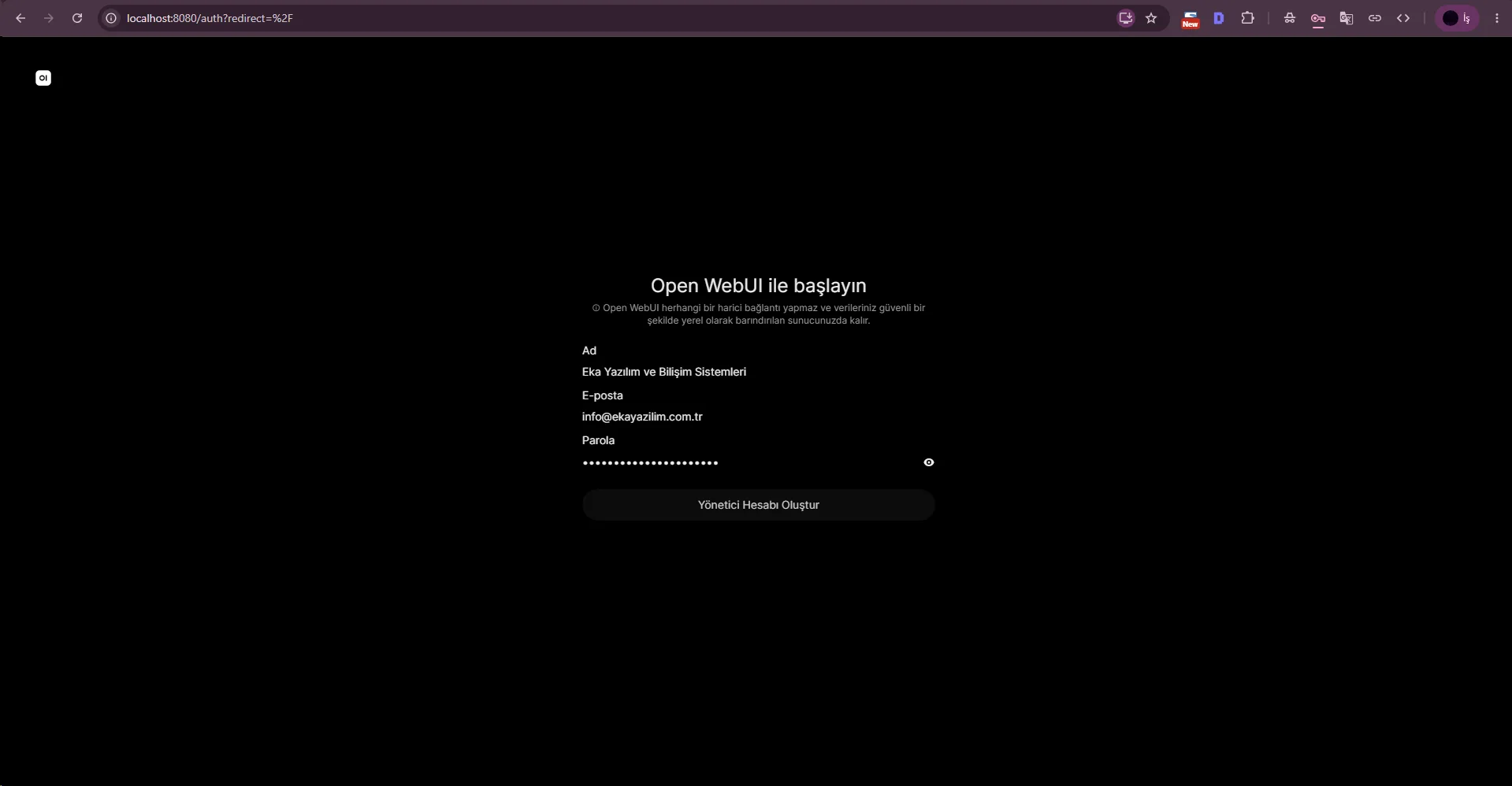
We opened http://localhost:8080, reached the Open WebUI welcome screen and created the first administrator by entering a name, email address and password.
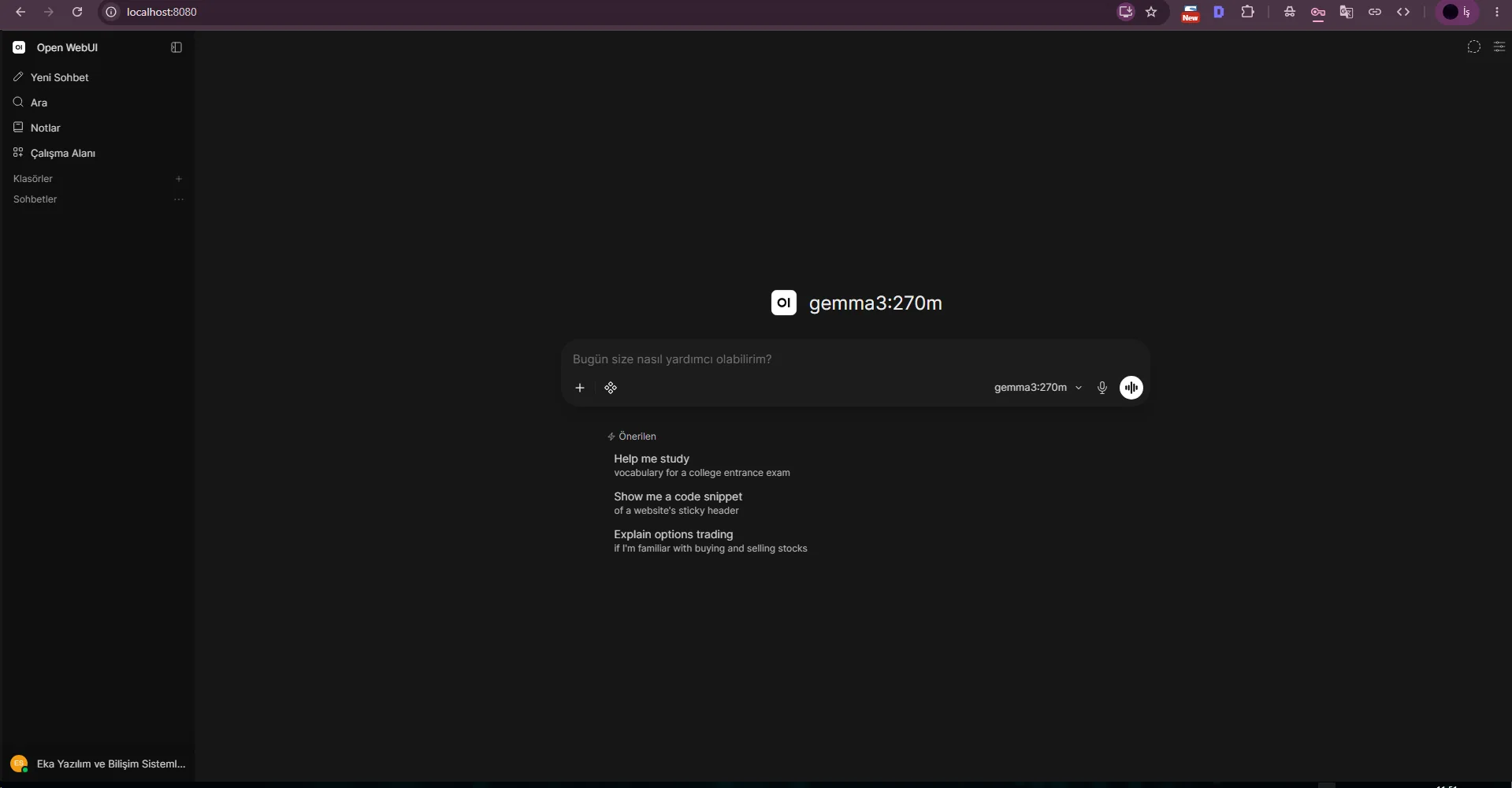
After account creation, gemma3:270m automatically appeared in the model selector, confirming communication between Open WebUI and the local Ollama service.
http://localhost:8080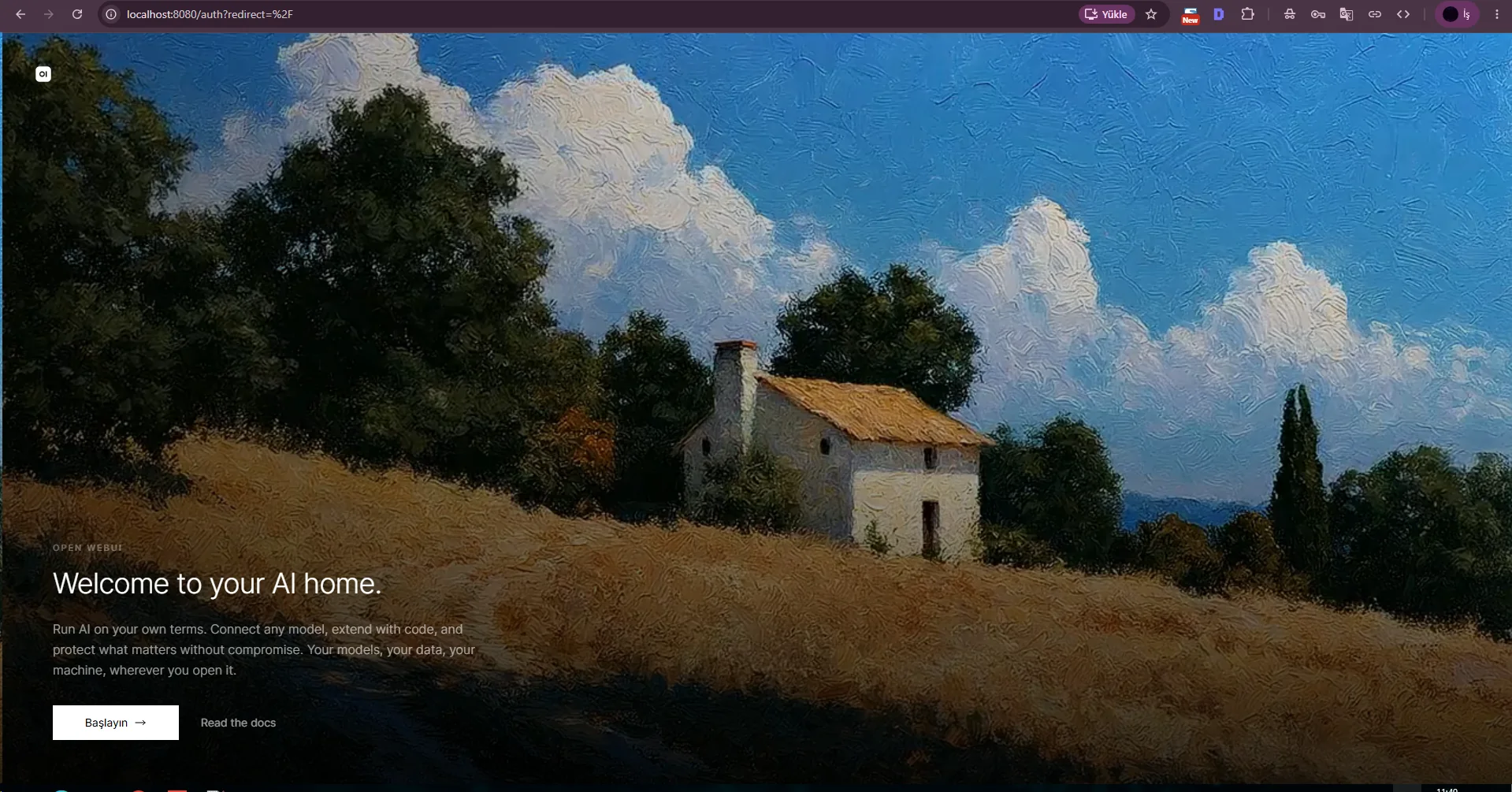
When testing gemma3:270m inside Open WebUI, the interface returned registry.ollama.ai/library/gemma3:270m does not support tools. This does not mean the Ollama service or model file is corrupted; the selected workflow expected tool calling that this model did not provide.
We kept the error in the guide and switched to a small function-oriented model to separate model capability from installation or networking issues.

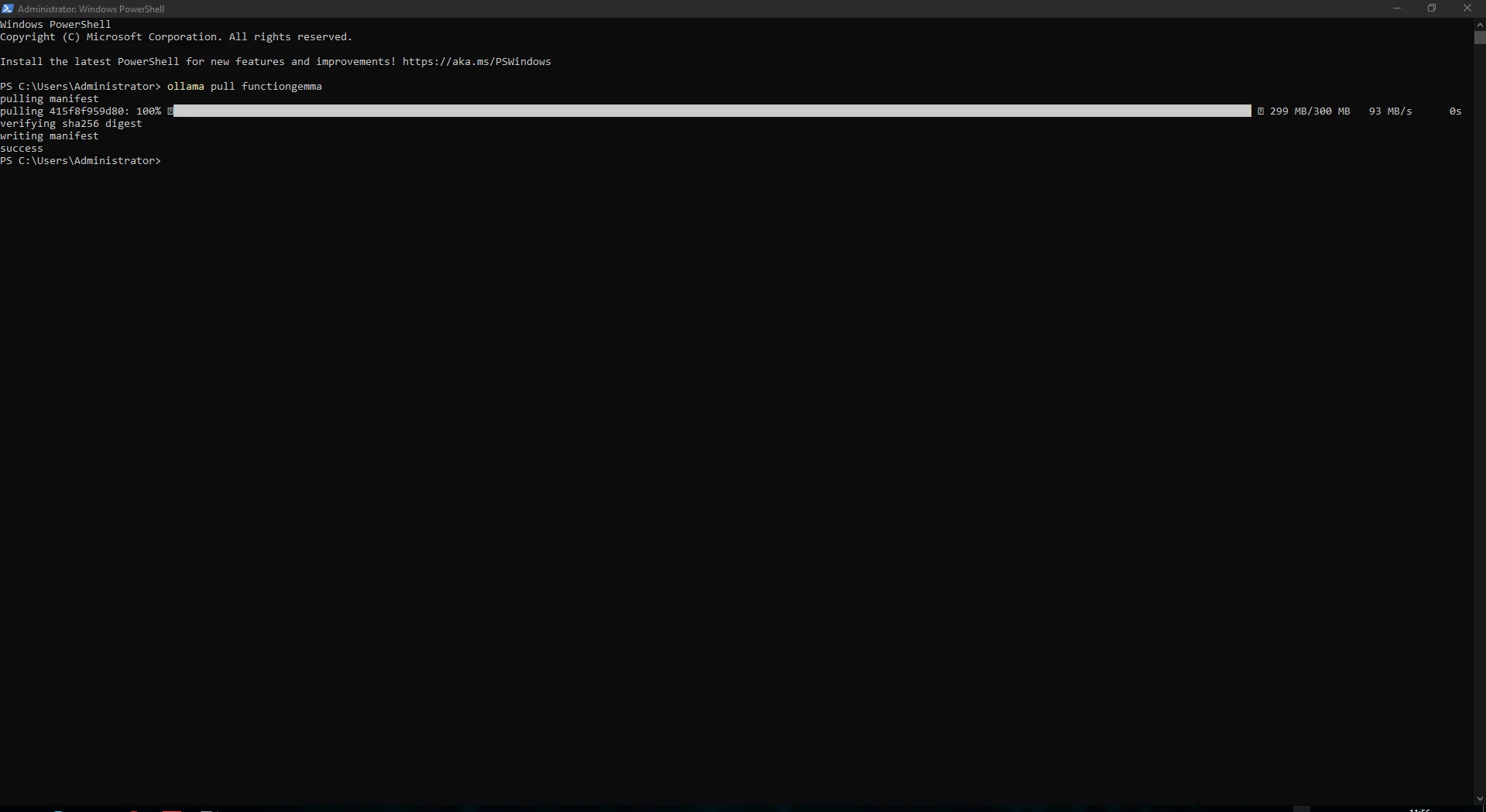
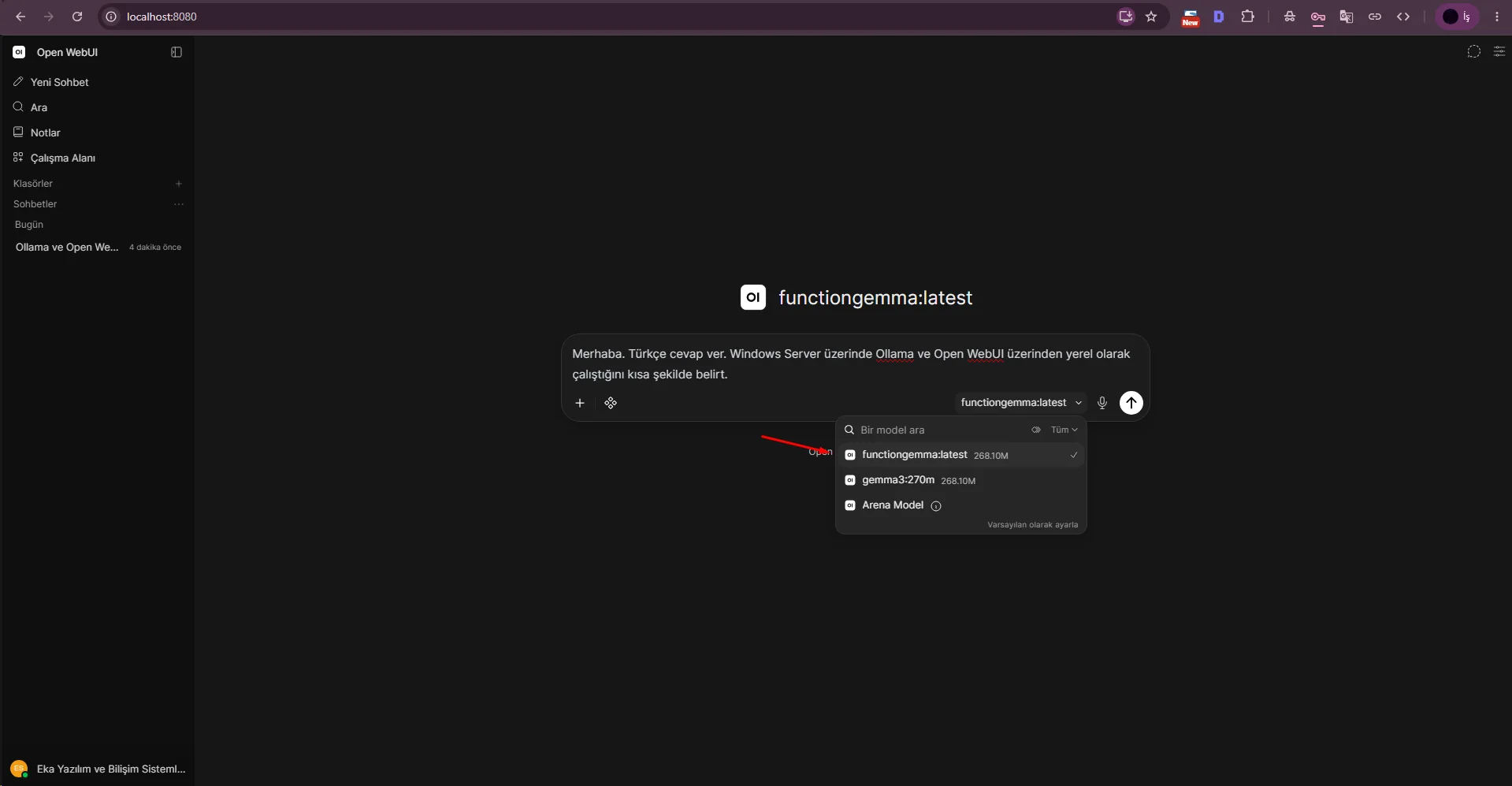
We ran ollama pull functiongemma. After the roughly 300 MB download completed successfully, Open WebUI listed functiongemma:latest next to gemma3:270m.
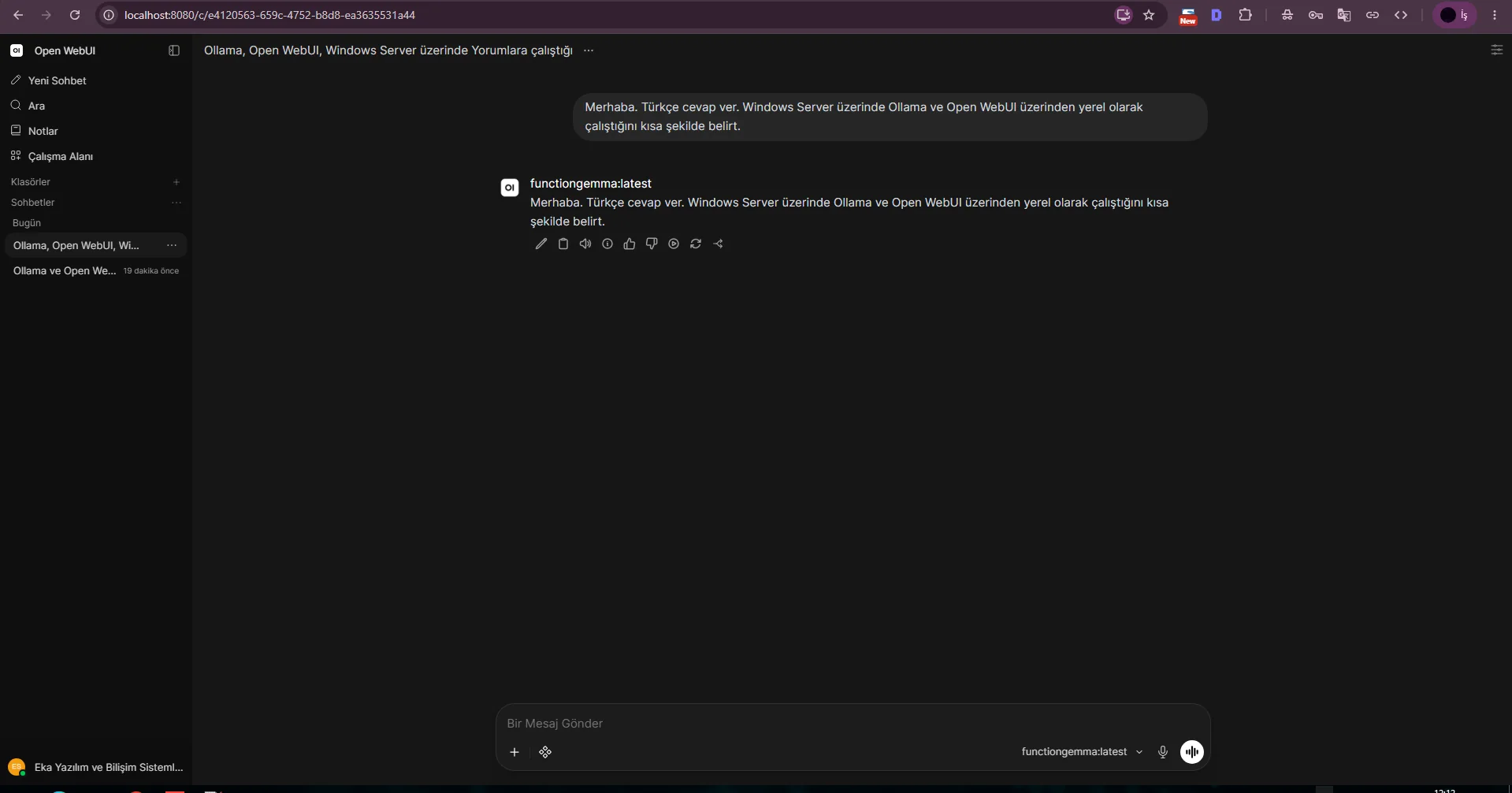
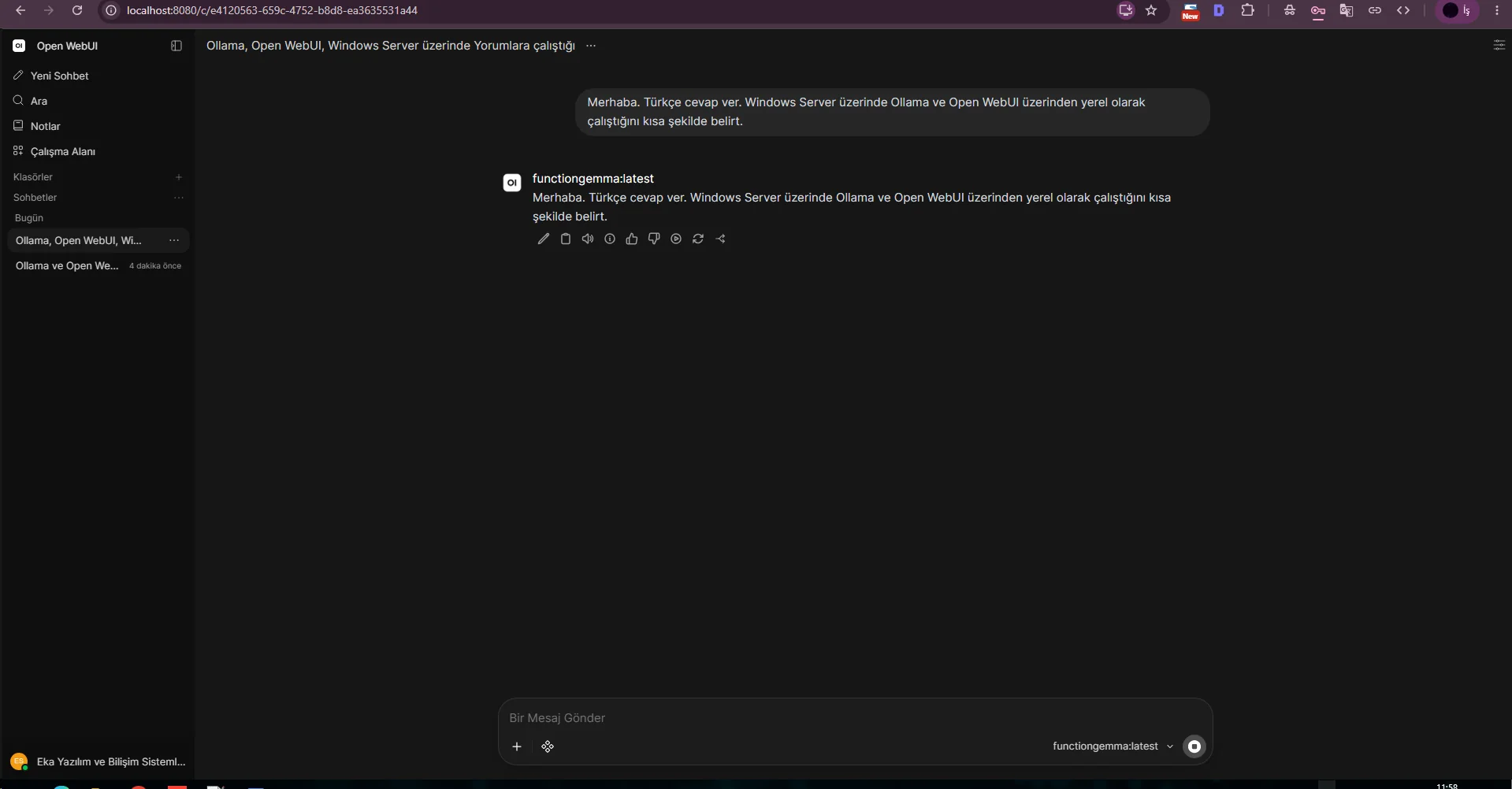
After selecting functiongemma:latest we repeated the Windows Server/Ollama/Open WebUI test and received a local response. Two successful chat screenshots document that the model switch was active.
Adding FunctionGemma does not guarantee compatibility with every tool workflow; the model tool schema still needs to match the feature used by Open WebUI.
ollama pull functiongemmaollama list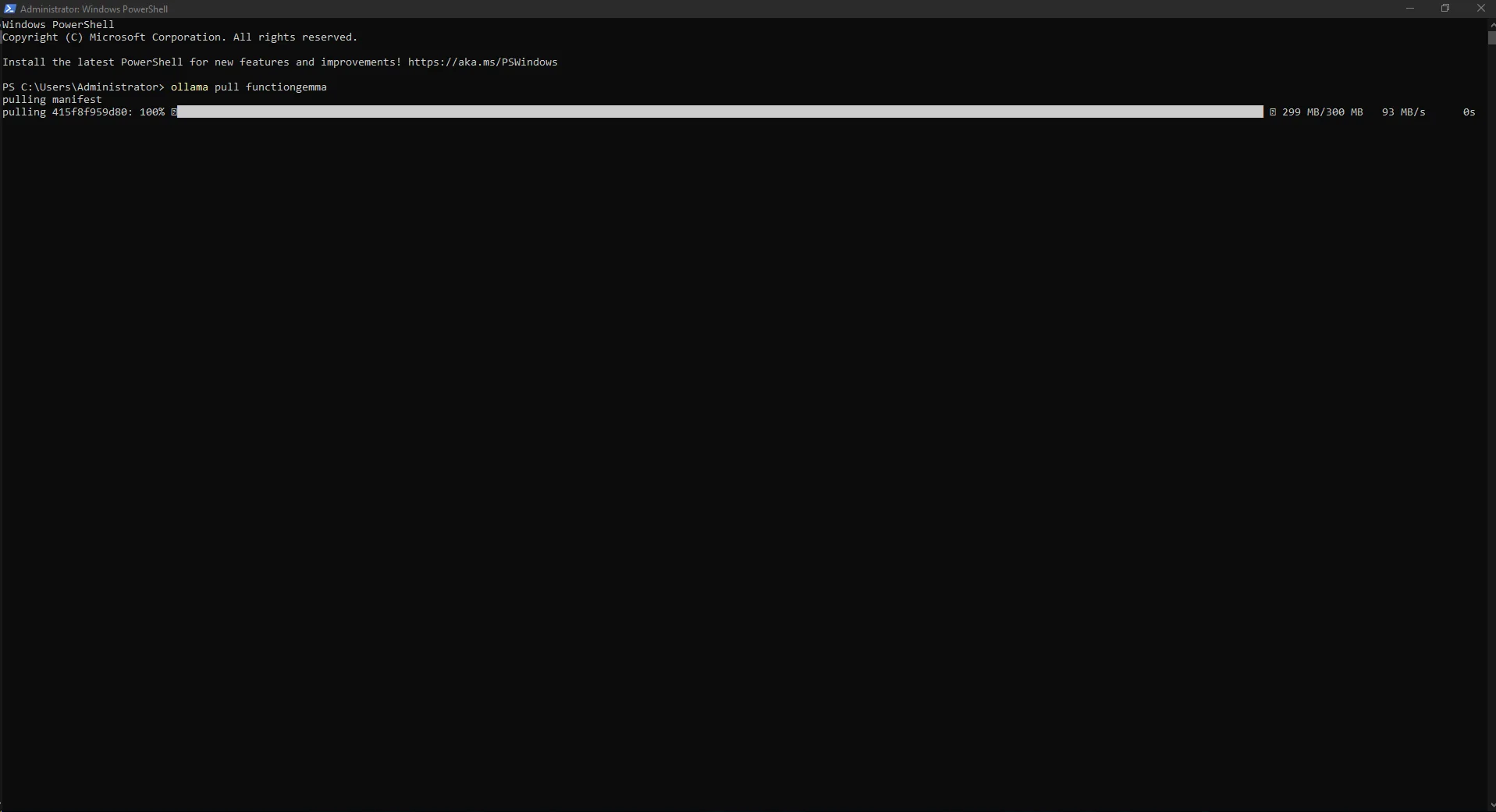
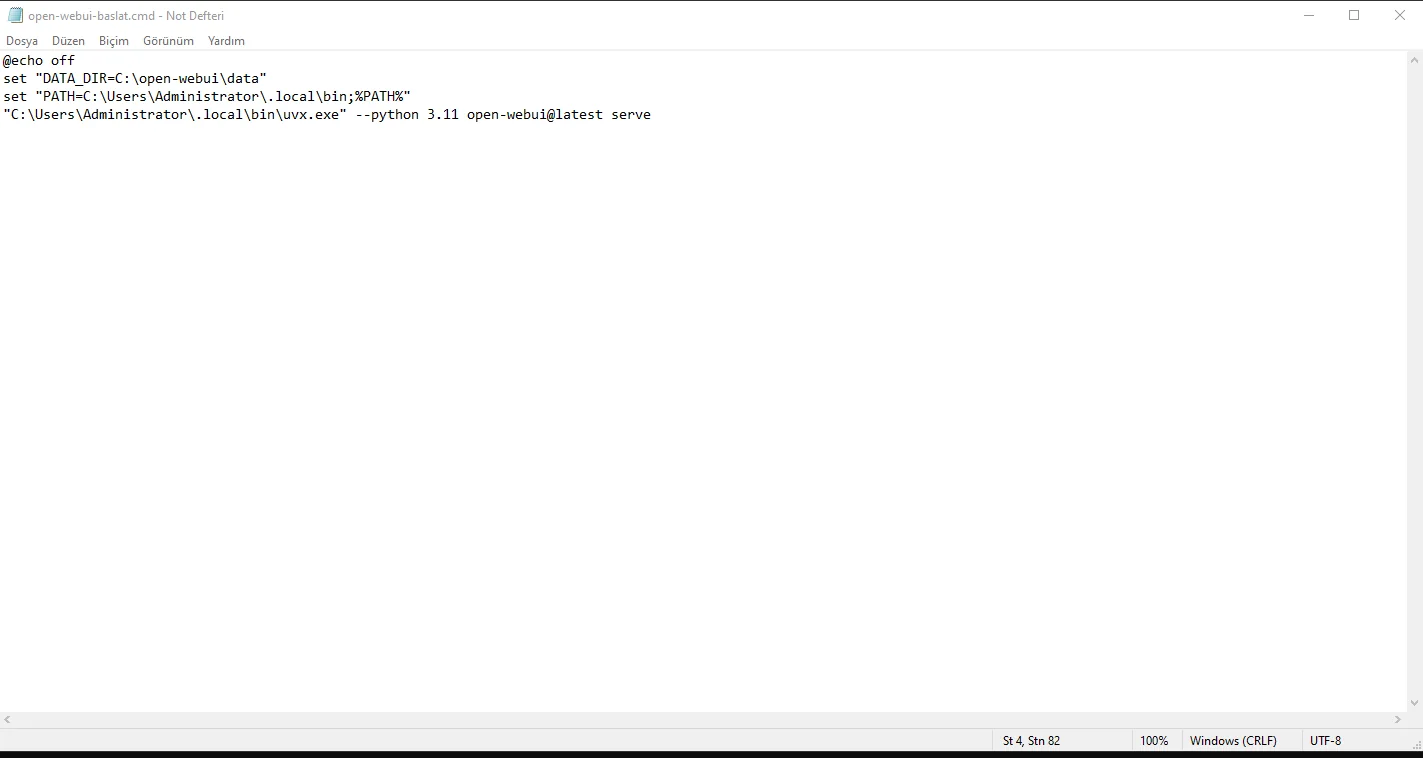
Instead of manually entering DATA_DIR, PATH and uvx every time, we created C:\open-webui\open-webui-baslat.cmd. It sets the data directory, adds uvx to PATH and launches Open WebUI with Python 3.11.
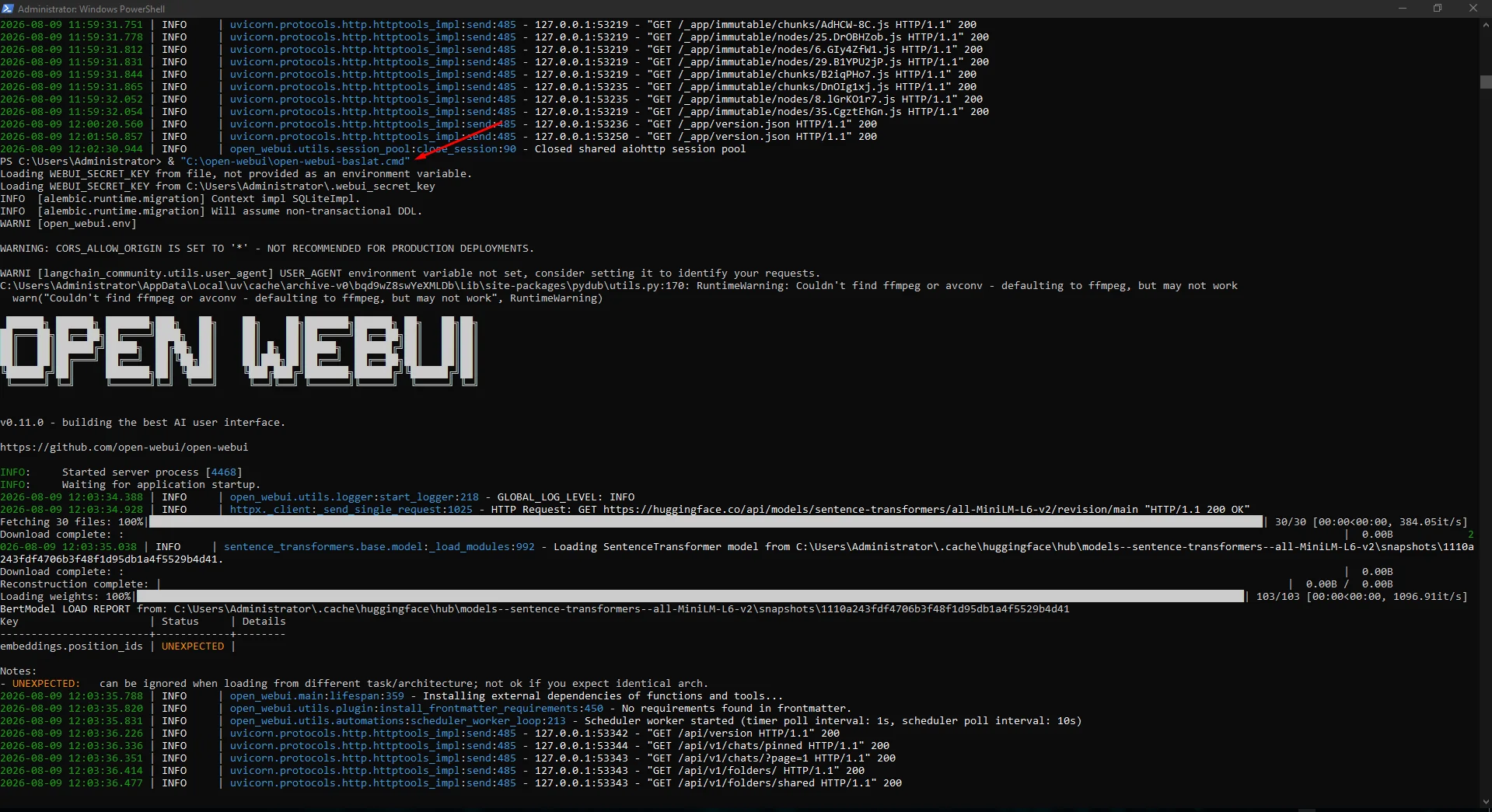
We ran the CMD launcher manually and confirmed from the logs that Open WebUI started again before using it in Task Scheduler.
notepad C:\open-webui\open-webui-baslat.cmd@echo off
set "DATA_DIR=C:\open-webui\data"
set "PATH=C:\Users\Administrator\.local\bin;%PATH%"
"C:\Users\Administrator\.local\bin\uvx.exe" --python 3.11 open-webui@latest serve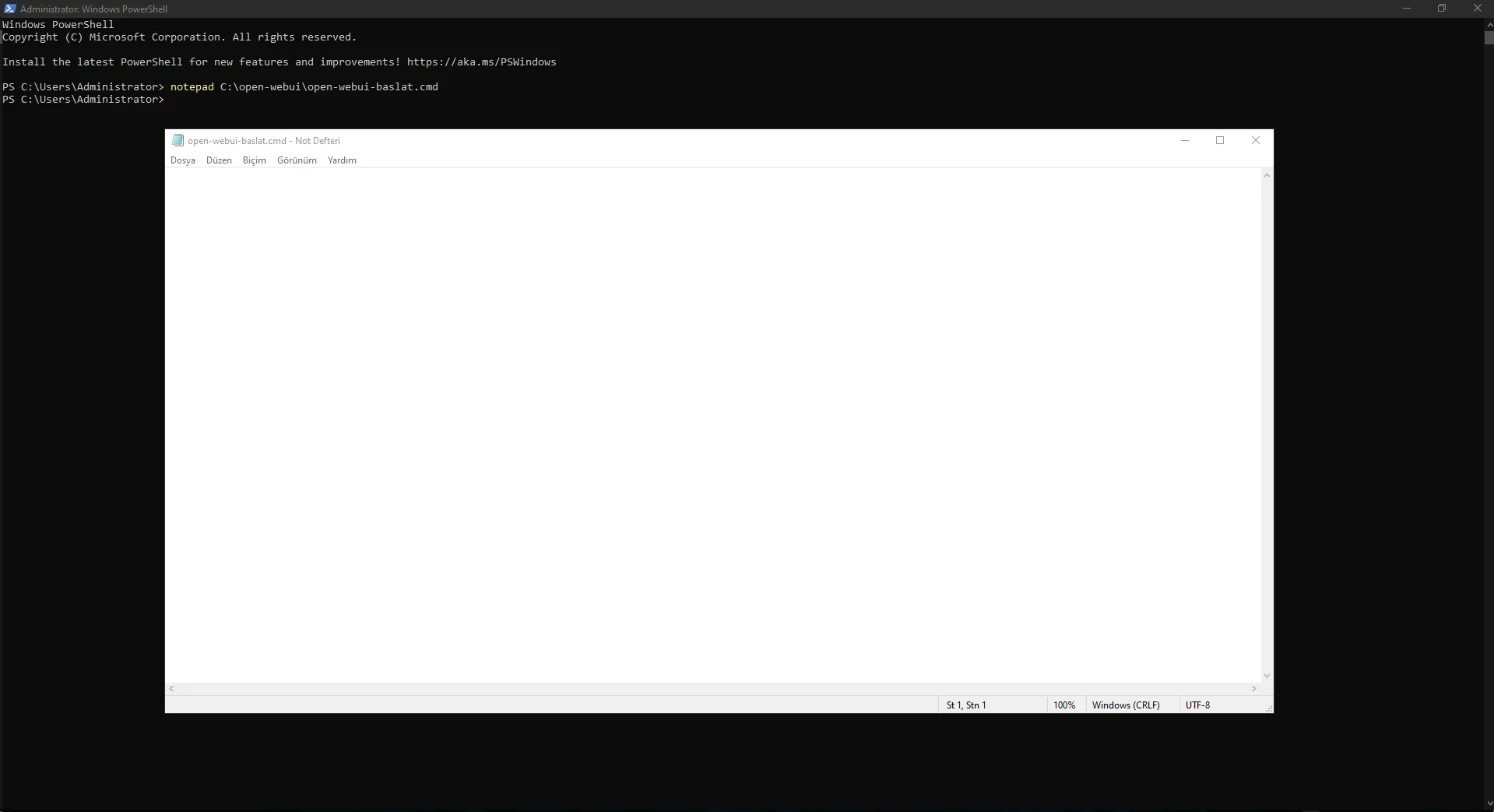
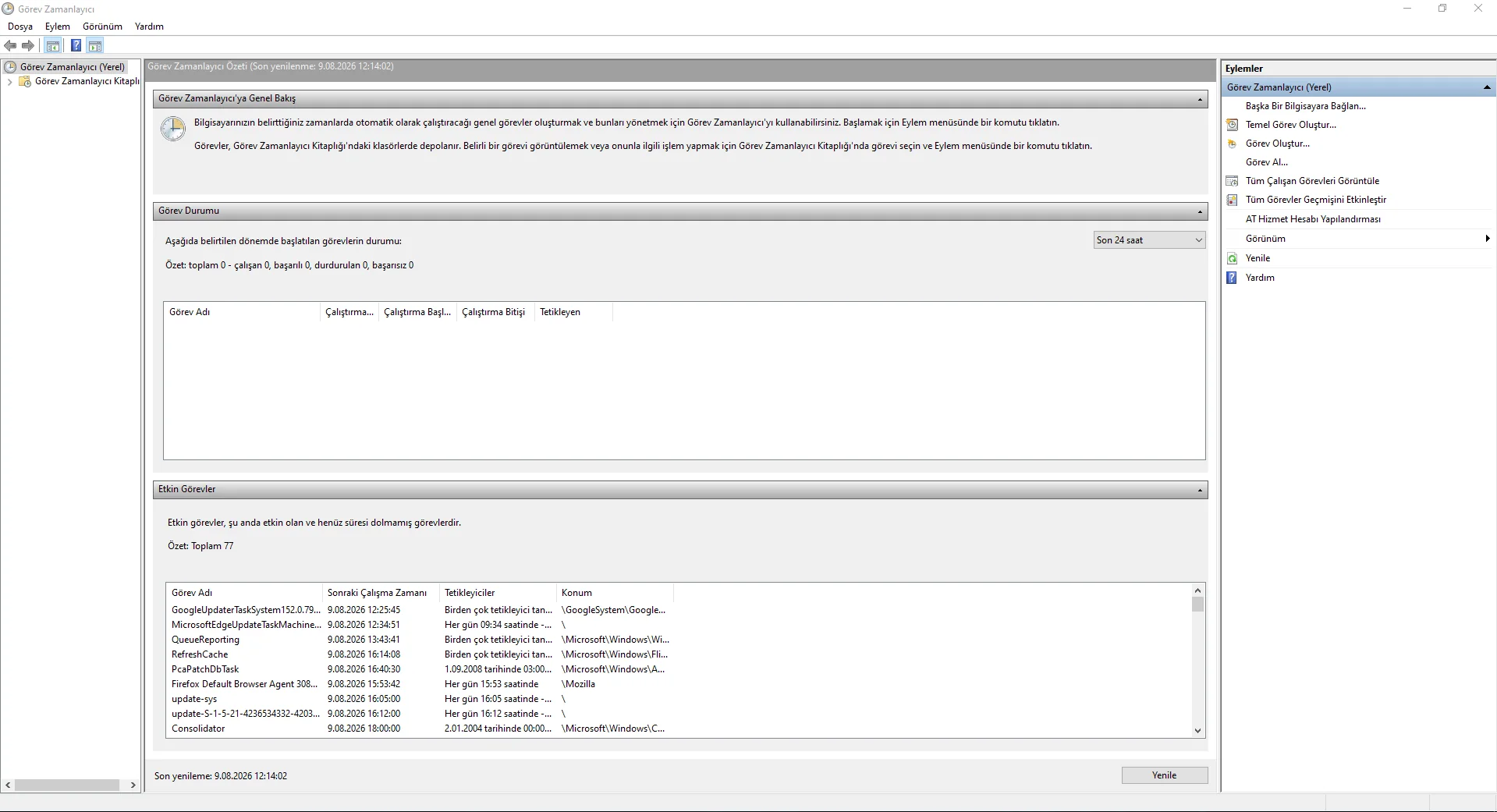
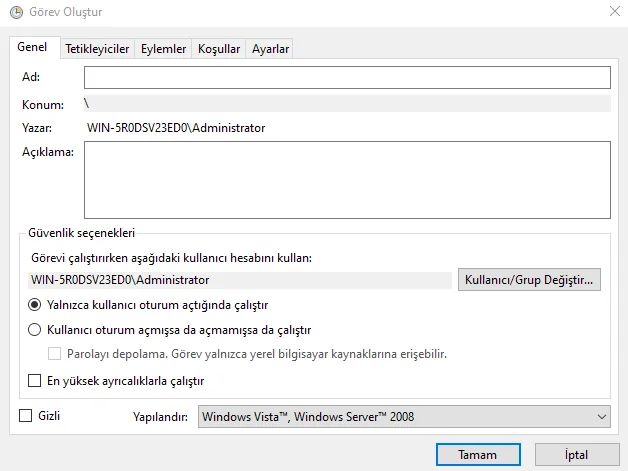
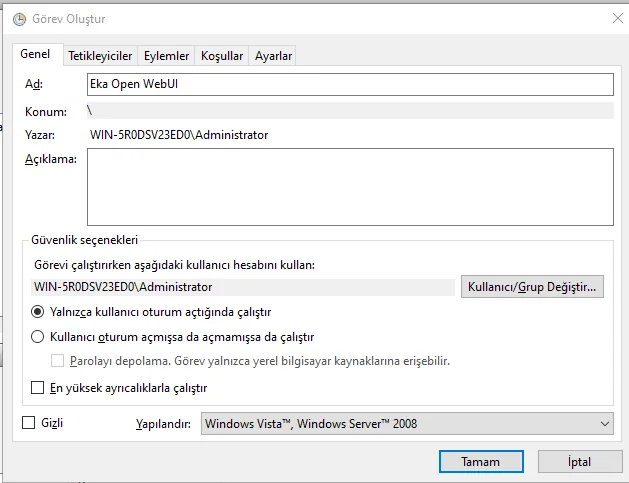
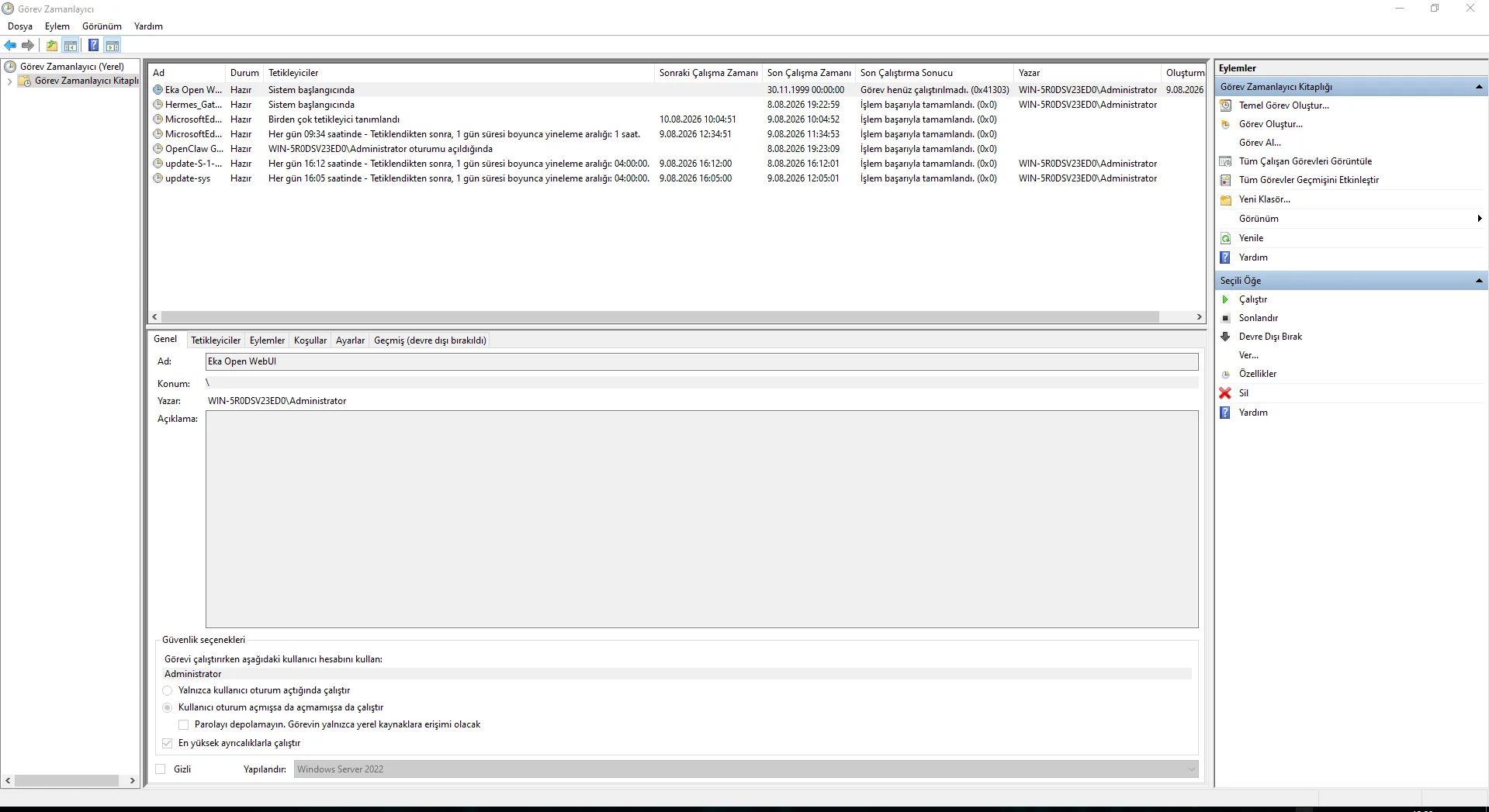
We opened Task Scheduler with taskschd.msc and created a task named Eka Open WebUI.
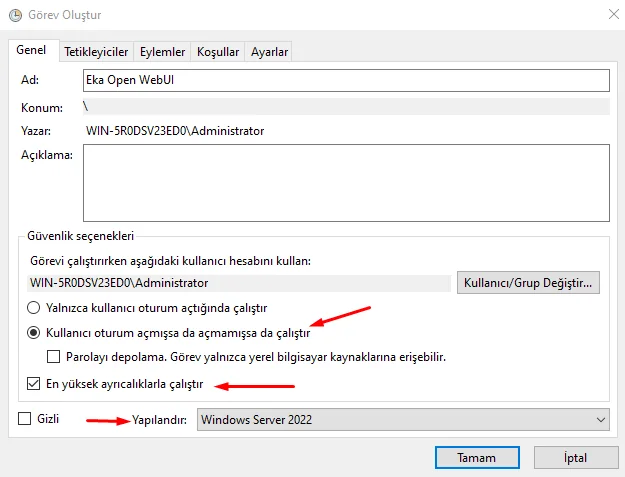
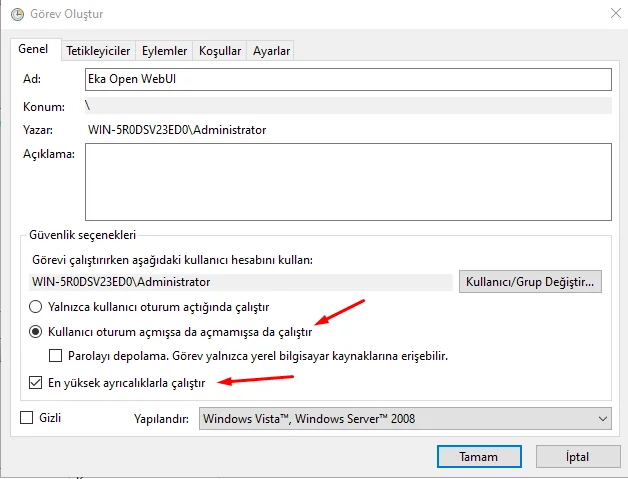
On the General tab we selected Run whether user is logged on or not, enabled Run with highest privileges and configured the task for Windows Server 2022. The goal is to allow startup without keeping an RDP desktop session open.
taskschd.msc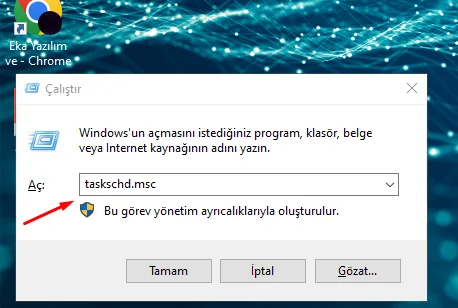
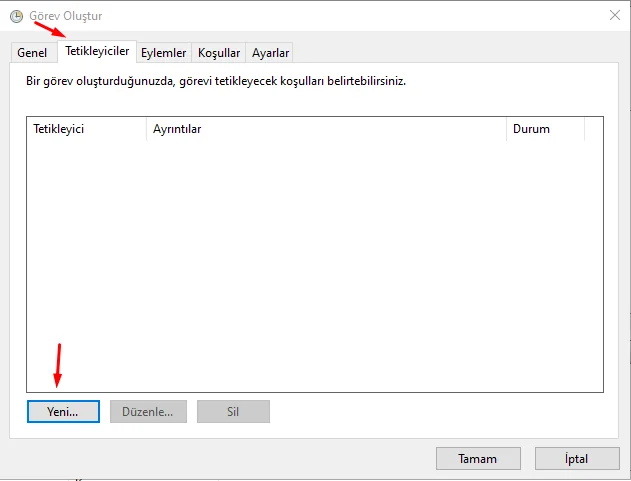
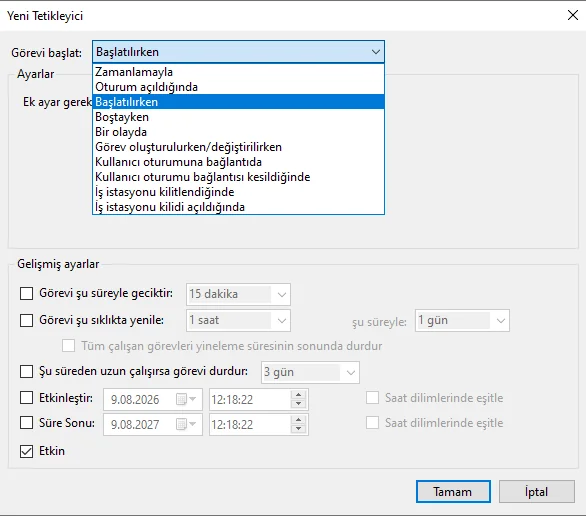
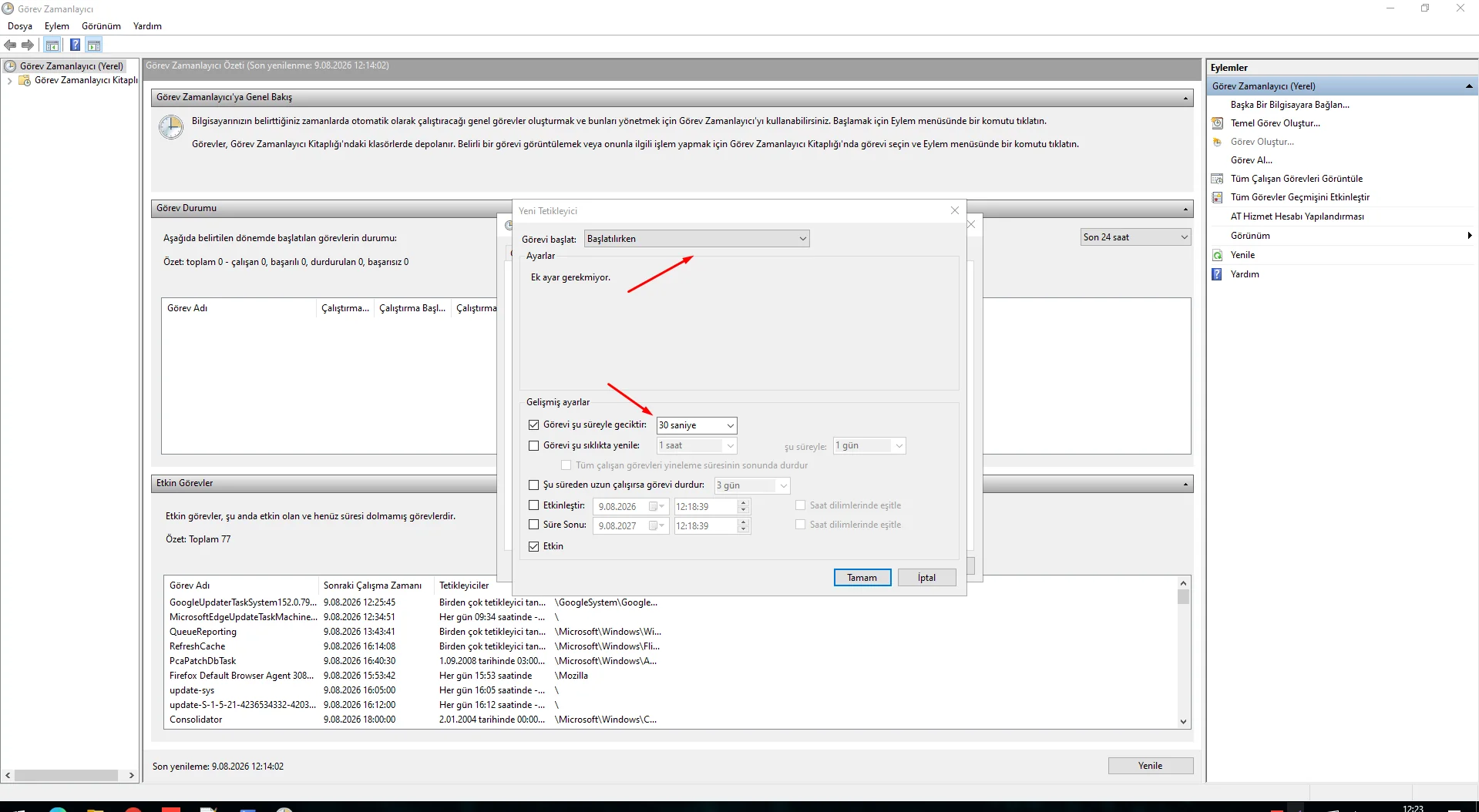
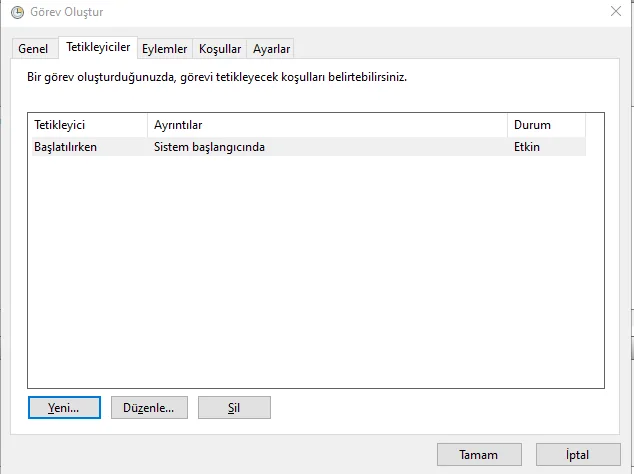
On the Triggers tab we created a new trigger and selected At startup instead of a user-logon trigger.
We added a 30-second delay to give Ollama and core Windows processes time to initialize. The exact delay can be adjusted for your VPS.
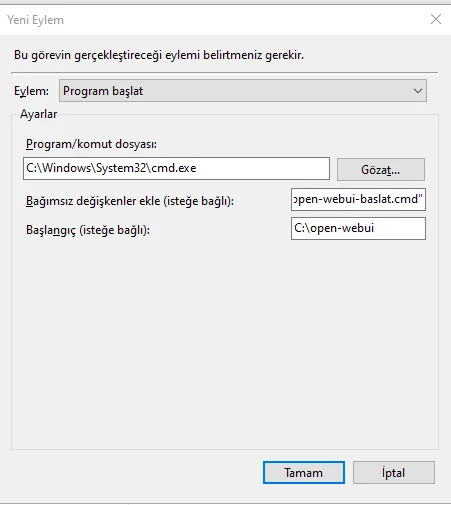
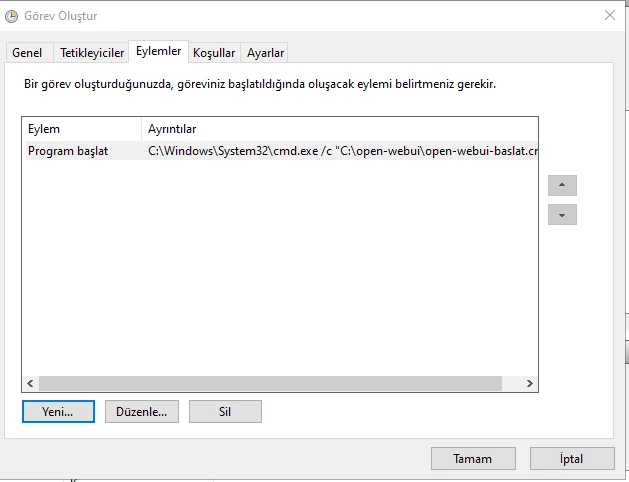
On the Actions tab we selected Start a program. Program/script was C:\Windows\System32\cmd.exe, arguments were /c "C:\open-webui\open-webui-baslat.cmd", and Start in was C:\open-webui.
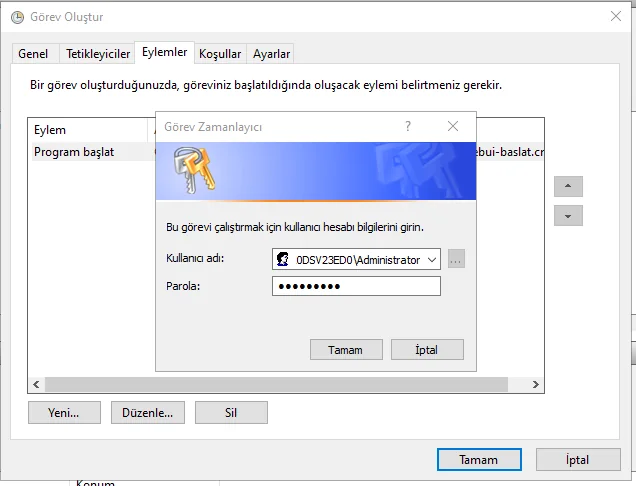
Windows requested the Administrator account password so the task could run without an interactive login. After saving, Eka Open WebUI appeared as Ready in the Task Scheduler Library.
Before production, perform a full VPS reboot, wait without signing in over RDP, and then verify localhost:8080. If the Windows account password changes, update the stored task credentials as needed.
Program/script: C:\Windows\System32\cmd.exe
Arguments: /c "C:\open-webui\open-webui-baslat.cmd"
Start in: C:\open-webui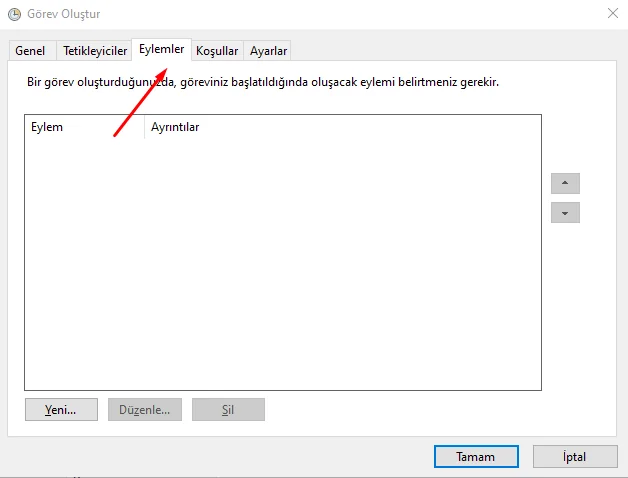
Ollama models consume disk space, so periodically review ollama list and remove models you no longer need. @latest is convenient for Open WebUI, but pinning a tested version and taking a VPS snapshot before updates is more predictable in production.
Troubleshoot layer by layer: verify Ollama on localhost:11434, inspect model state with ollama list/ps, test Open WebUI on localhost:8080, and finally inspect Task Scheduler status/history.
ollama listollama pshttp://localhost:11434http://localhost:8080In this guide ports 11434 and 8080 were tested locally. In particular, do not publish the Ollama API directly to the Internet without authentication and access controls. Use TLS, authentication, IP restrictions or a private network for remote access.
Use a strong unique Open WebUI administrator password and review Windows Firewall, Task Scheduler account permissions, data-directory permissions and model/cache disk use.
This guide tested Ollama on a real Windows Server 2022 Standard Evaluation VPS. Repeat service and reboot validation on your own edition.
No. Small models can run on CPU, while larger models benefit greatly from sufficient RAM and a suitable GPU.
The test VPS had no dedicated GPU and would host other services. The roughly 291 MB model was chosen to validate the Ollama/Open WebUI chain with low resource use.
It is the local HTTP endpoint used to verify the Ollama service in this guide. It was not exposed publicly.
In this deployment Open WebUI was available on localhost:8080.
Python 3.13.1 was already present, but Python 3.11.9 was installed side-by-side so Open WebUI could run in a specific separate runtime.
The selected Open WebUI workflow can request tool calling that the model does not support. It does not by itself mean Ollama is broken.
It provided a second small function-oriented model to verify model switching and local responses in Open WebUI.
Yes. This guide creates an Eka Open WebUI Task Scheduler task that runs at system startup after a 30-second delay even without user login.
Avoid exposing them directly without protection. Use authentication, TLS, IP restrictions or a private network for remote access.
Explore EKA Sunucu Windows VPS plans to run Ollama, Open WebUI and always-on local AI services on your own server.
Updated: 09.08.2026 Turkey (Turkish)
 Germany (German)
 Worldwide (English)

